
Step‑by‑Step Instructions
Open the POS Order Screen
Log in to Oolio POS, then navigate to the POS Order Screen.
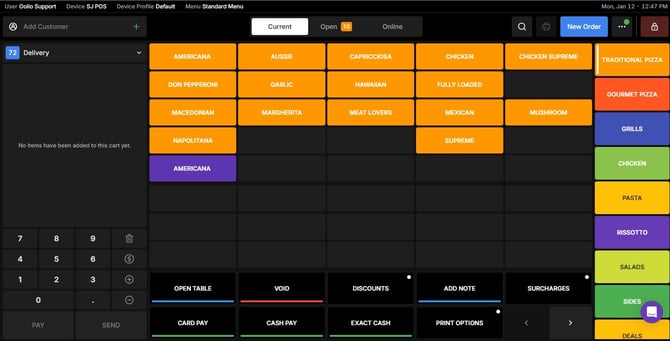
Open the “Open” Tab
Click on the Open tab to view all active orders.
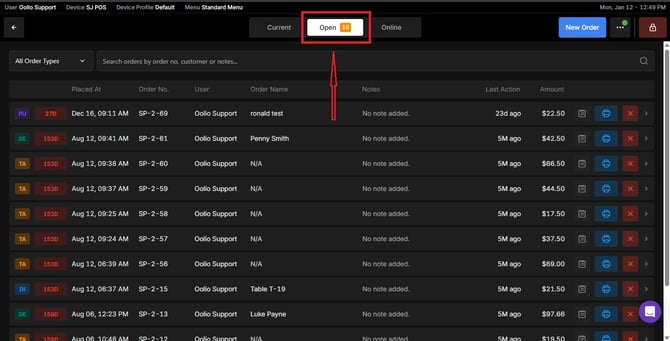
Go to Orders
Select Orders from the POS screen.
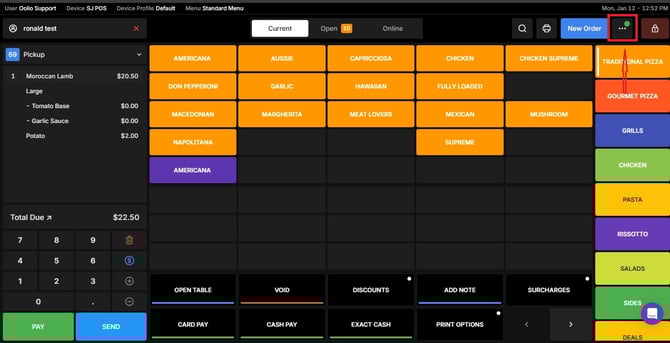
Open the Navigation Menu
In the top‑right corner of the screen, click the Navigation Menu.
Select the Shifts Section
From the menu, choose Shifts.
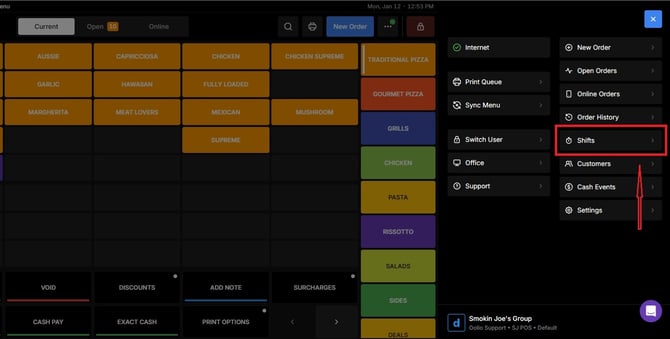
Find the Correct Shift
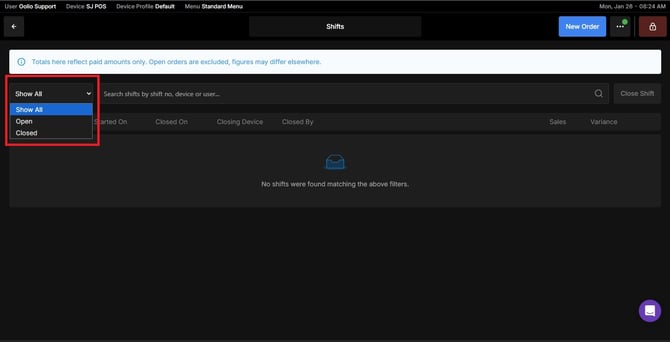
Use the available filters to locate the shift you want to close:
- Filter by Open, Closed, or All Orders
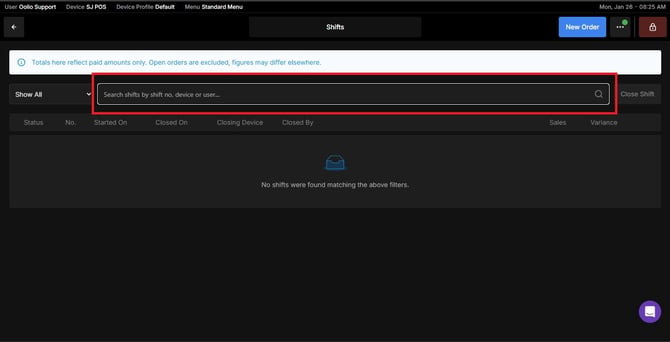
- Further refine results by Shift Number, Device, or User
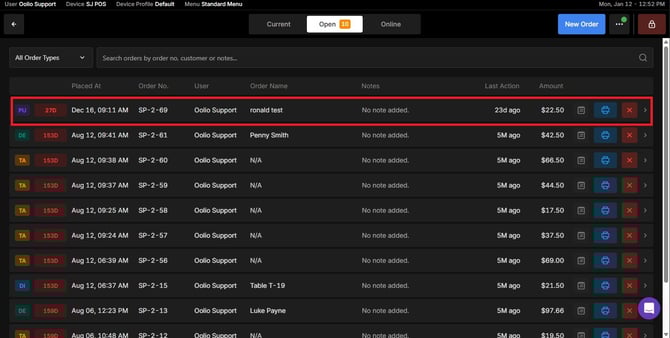
Select the Order
Click on the order associated with the shift.
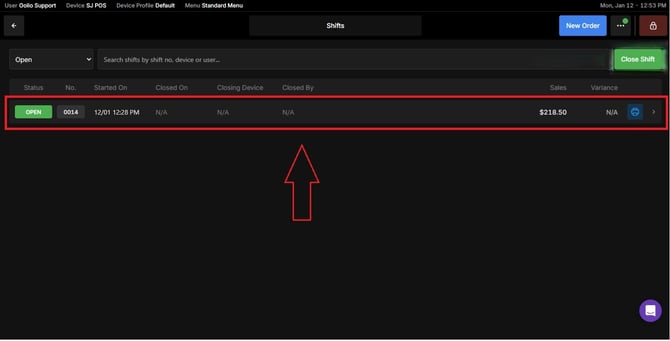
Close the Shift
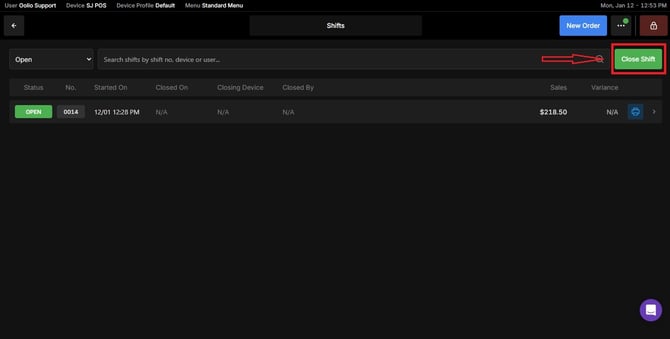
Open the Navigation Menu again, select Shifts, and click the Close Shift button.
-
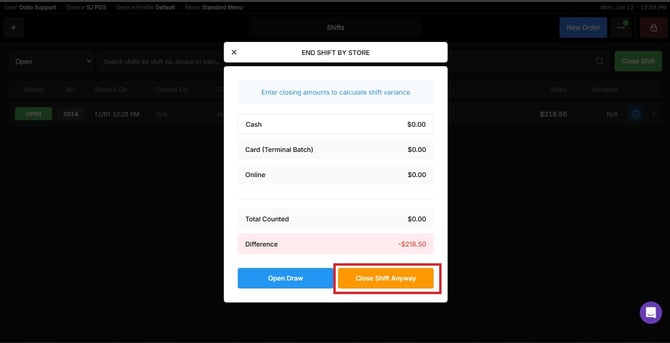
Cash - The amount of cash you counted at the end of your shift.
-
Card (Terminal Batch) - The total amount from card payments, based on the terminal batch report.
-
Online - Any payments received through online orders.
-
Total Counted - The total of everything you entered:
Cash
Card
Online
- Difference
This shows whether the counted amount matches the system’s expected amount.
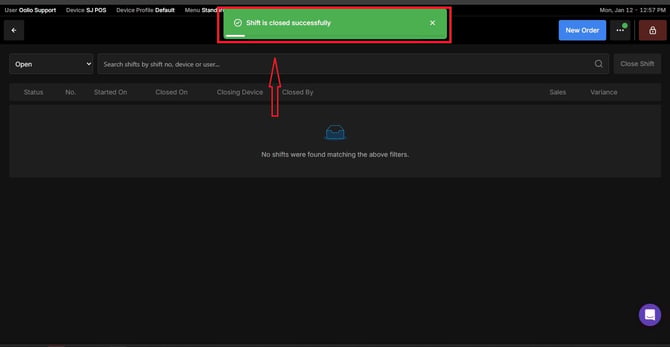
Note: Before closing a shift, ensure all orders are completed and that payments are fully processed. Reviewing the shift details carefully helps prevent reporting errors and ensures accurate daily records.
If you need further assistance, simply click the purple chat icon at the bottom-right corner of the screen to connect directly with our Application Support Team.