
Step-by-Step Instructions
Take a System Backup
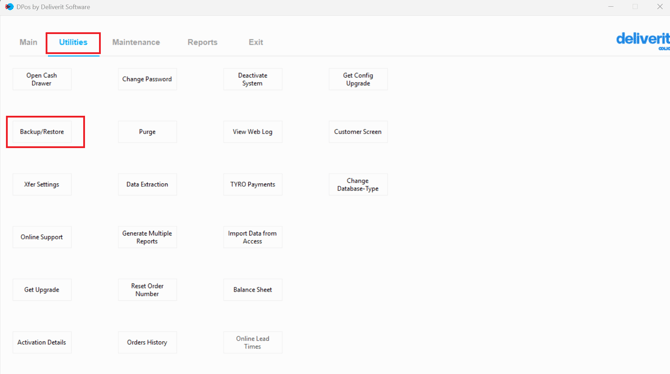
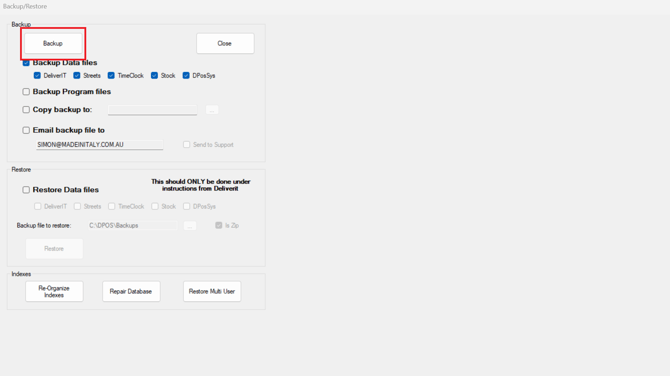
In your DPOS, go to the Utilities tab, and click the Backup/Restore button.
Note: Ensure that there are current/open tables in session. This will help you preview colour changes in real-time.
Go to Settings
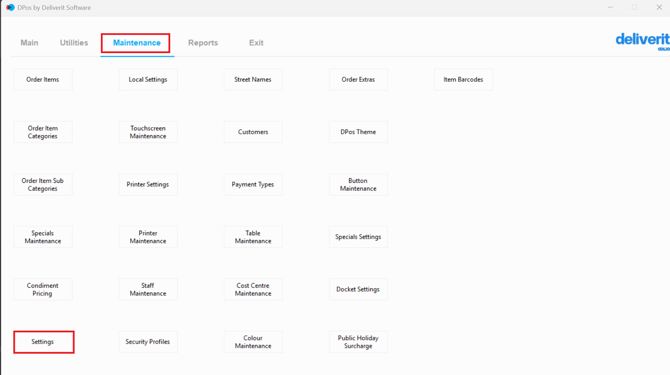
From the Maintenance tab, tap or click on Settings.
Search for Table Colour Settings
Use the search bar to look for:
- Table Colour - Open
- Table Colour - Closed
- Table Colour - BillPrinted
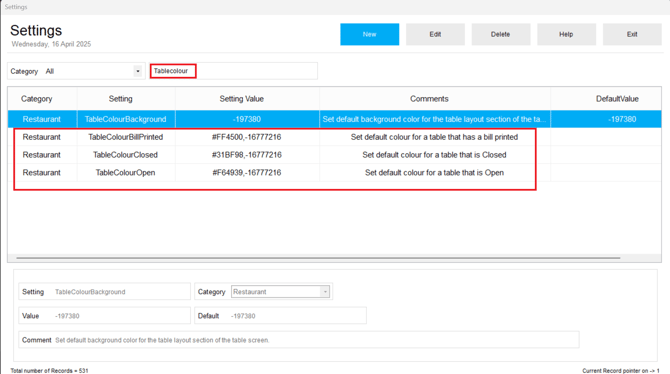
These options control how tables appear based on their status.
Choose a New Colour
Next, double-click the table colour you want to change, then click the Colour button.
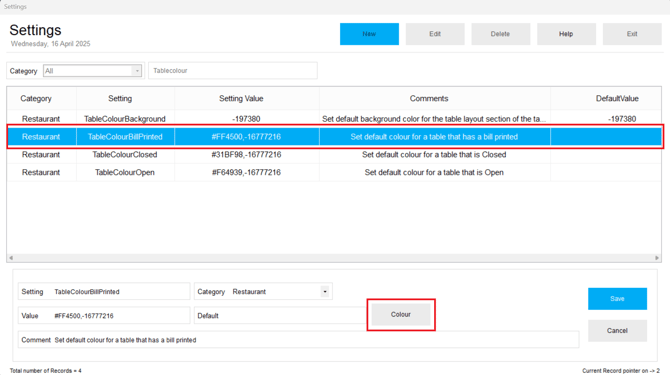
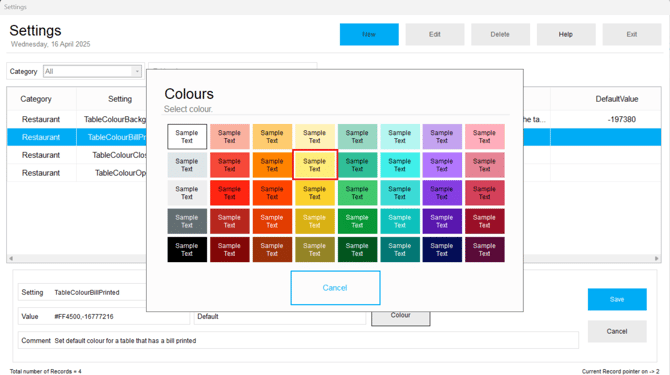
Select your desired colour.
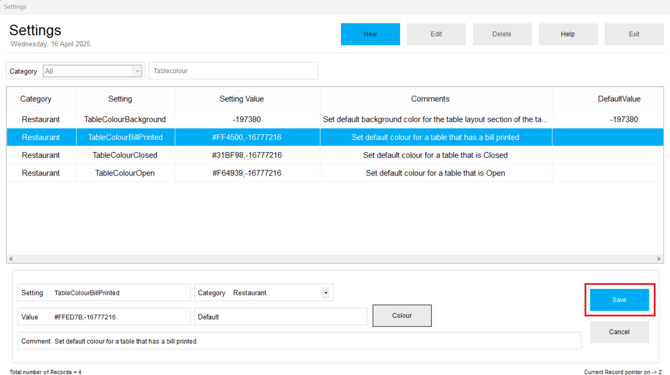
Save and Exit
After choosing your colours, make sure to save your changes. You’ll see the updates reflected on your table layout immediately.
Customising table colours helps staff quickly identify the status of tables at a glance. If you need further assistance, simply click the blue chat icon at the bottom-right corner of the screen to connect directly with our Application Support Team.