
Step-by-Step Guide
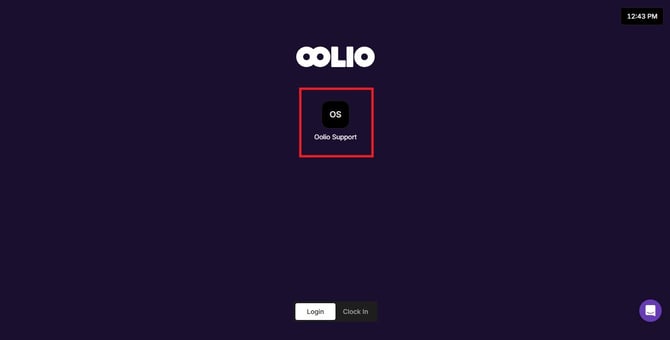
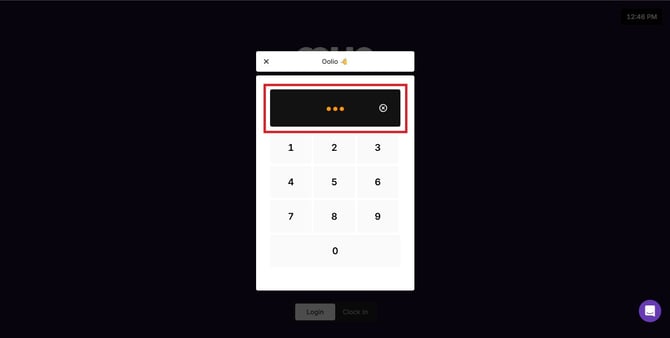
Log in to Oolio
Start by signing in to your Oolio POS account using your username and password.
Open the Navigation Menu
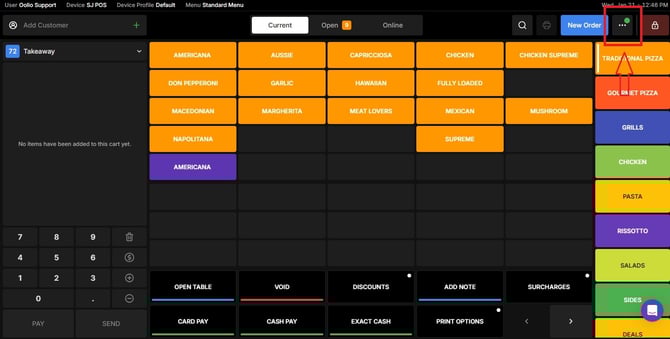
- Once logged in, click the navigation button located at the top-right of the page.
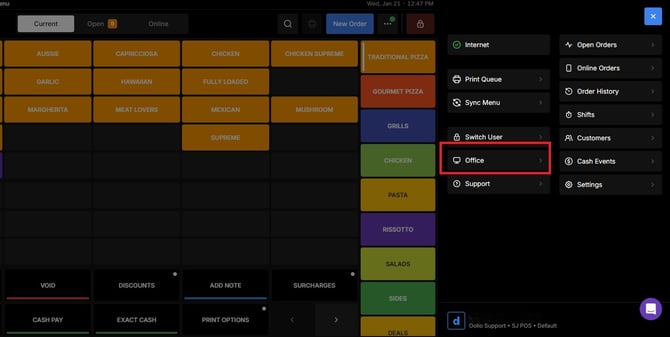
- From the dropdown, click Office.
Open the App Launcher
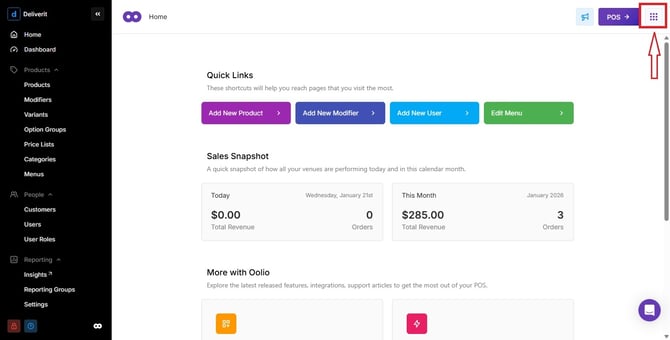
- In the top‑right corner, click the App Launcher (the 9‑dot grid icon).
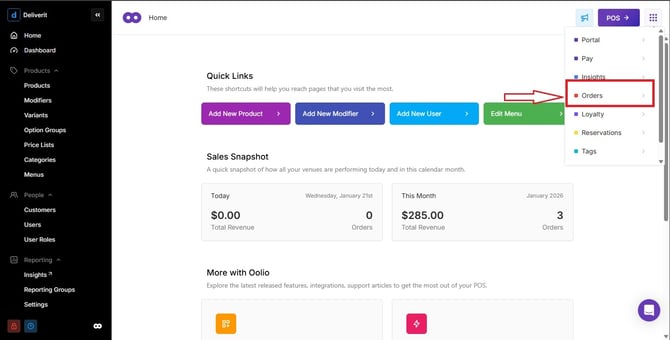
- Select Orders from the available apps.
Open the Stores Section
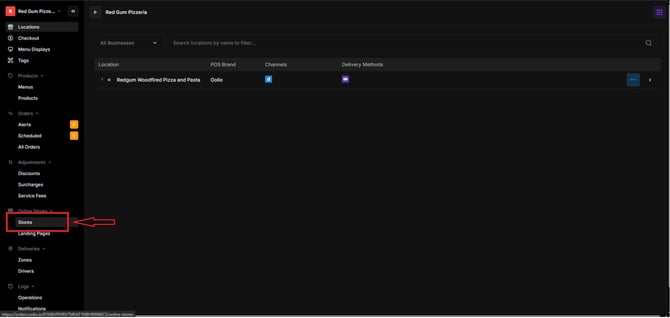
Using the left-hand navigation menu, click on Stores.
Choose the Store to Update
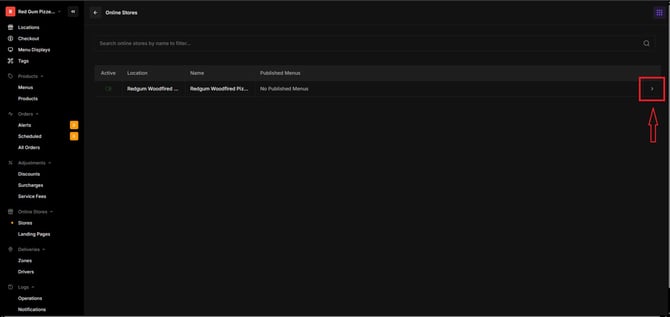
Click the arrow button beside your store name.
This will open all store configuration settings.
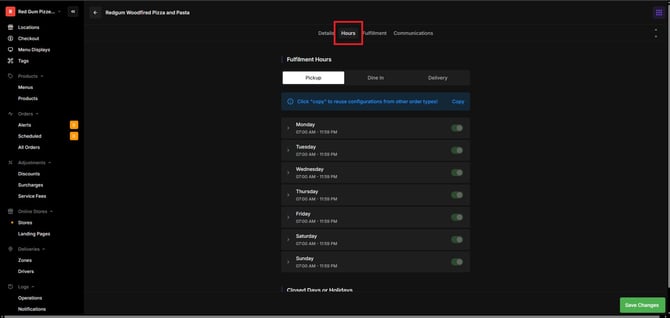
Go to the Hours Tab
In the store settings, select the Hours tab to access trading hour options.
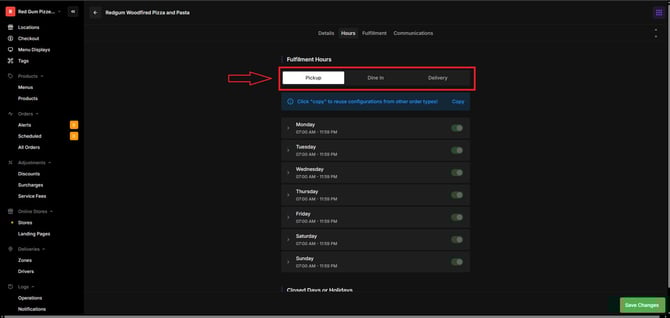
Adjust Trading Hours
You can set trading hours for Pickup, Dine-In, and Delivery.
You have two ways to modify the schedule:
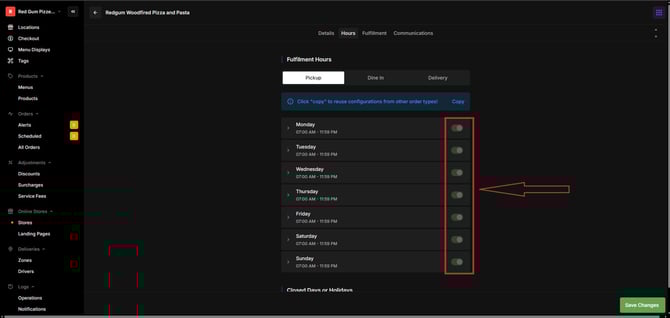
• Toggle Store Open Days
Turn specific days ON or OFF based on your operating schedule.
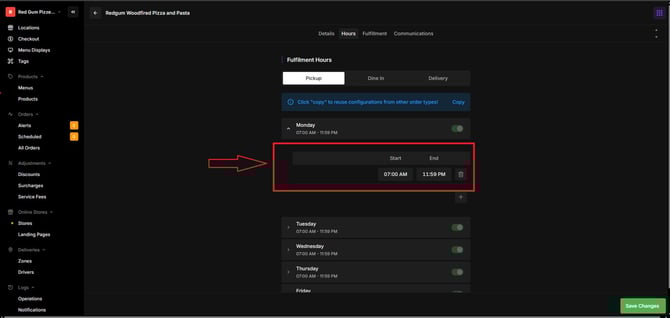
• Edit Individual Day Hours
To update specific day hours:
- Click on the day you want to edit.
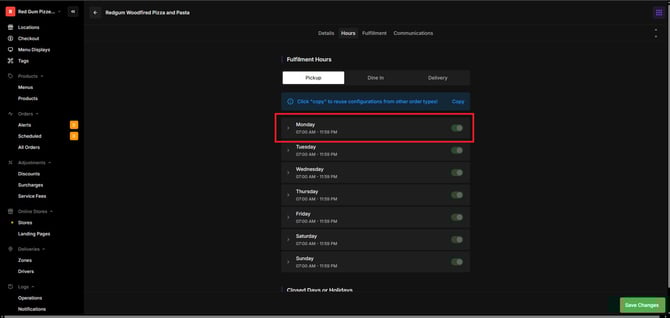
- Adjust the opening and closing times as required.
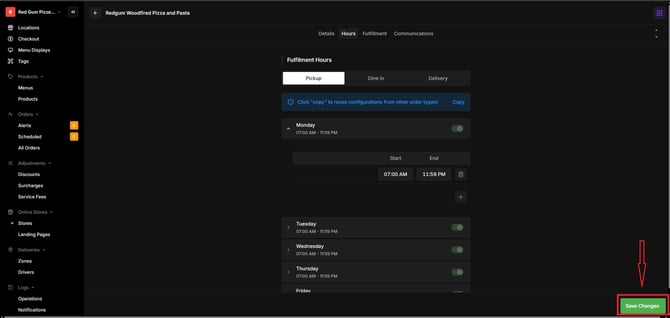
Save Your Changes
After making updates, click Save to apply the new trading hours to your online store.
If you need further assistance, simply click the blue chat icon at the bottom-right corner of the screen to connect directly with our Application Support Team.