
Step‑by‑Step Instructions
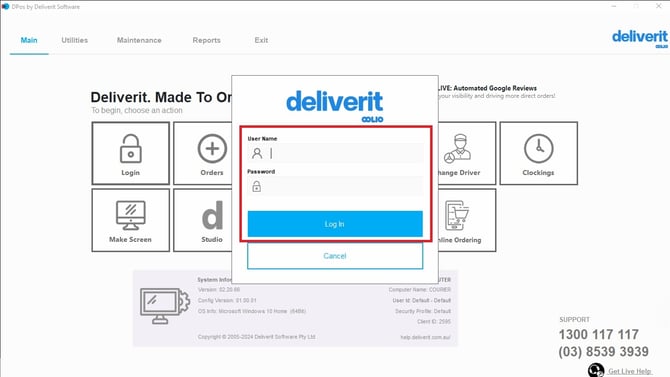
Log In to DPos
- Open DPos on your device.
- Enter your login credentials.
- Click Sign In to access the dashboard.
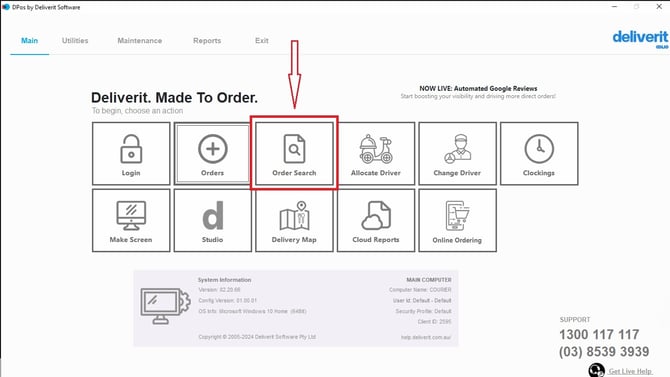
Go to Order Search
- From the main screen, select Order Search.
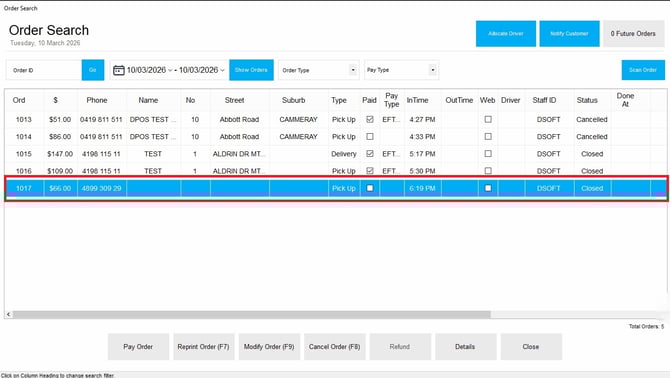
- Click on the correct order from the list.
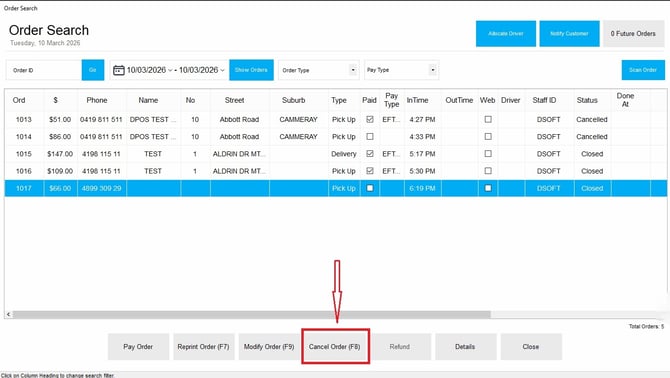
Cancel the Order
- After opening the order details, click the Cancel Order button.
- A Prompt will appear to confirm the cancellation
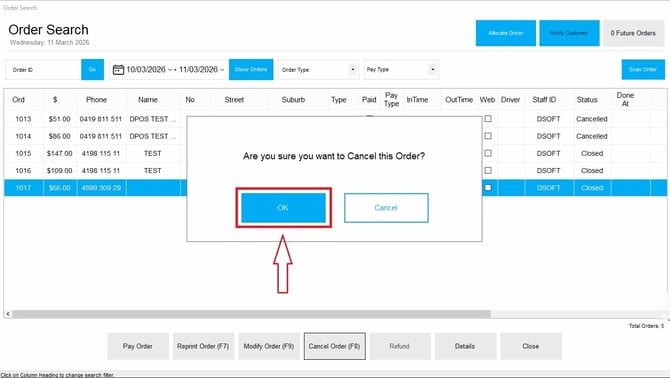
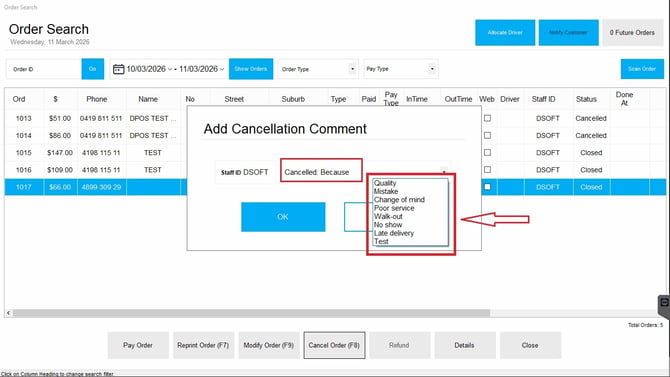
- A dropdown list will appear—select the appropriate reason for cancellation.
- Once you’ve selected a reason, click Okay.
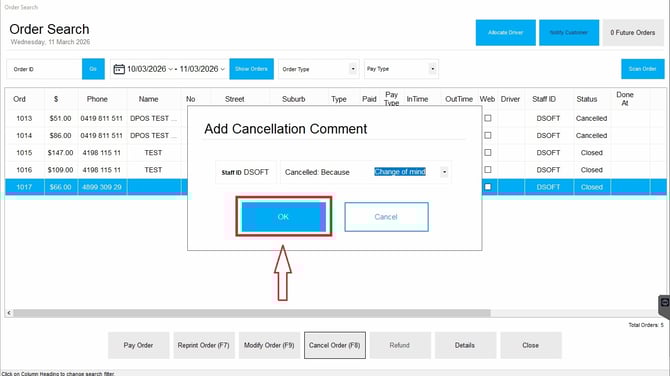
Confirm Cancellation
Once saved, the order will automatically be marked as canceled in the system.
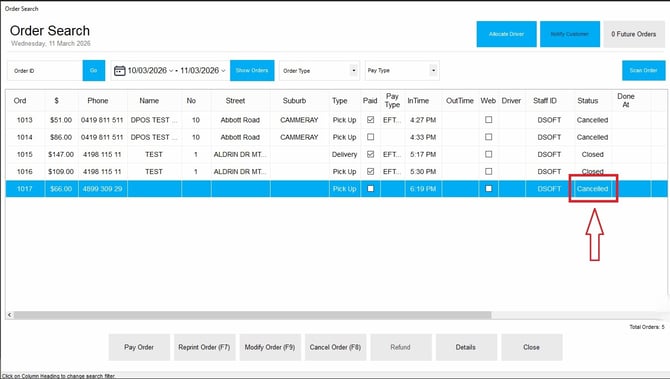
Once the order is canceled, its values will no longer appear in your DPos reports.
Order cancellation helps maintain accurate records and ensures customers are billed correctly. If you need further assistance, simply click the blue chat icon at the bottom-right corner of the screen to connect directly with our Application Support Team.