
Step-by-Step Guide
Open the Orders Screen
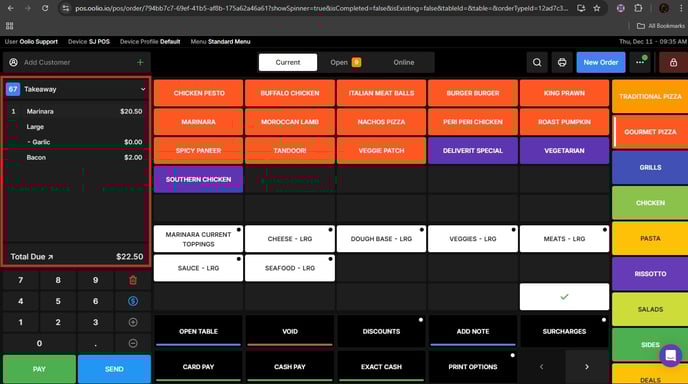
- From the POS home screen, navigate to the Orders section.
- Create a new order or select an existing open order.
Open the Add Customer Window
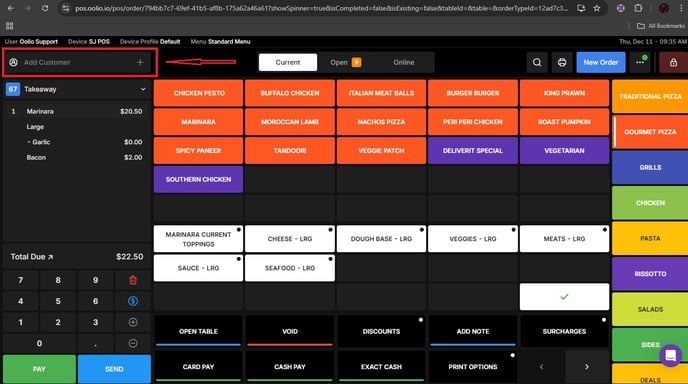
- Tap the Add Customer button (green plus icon) located on the order screen.
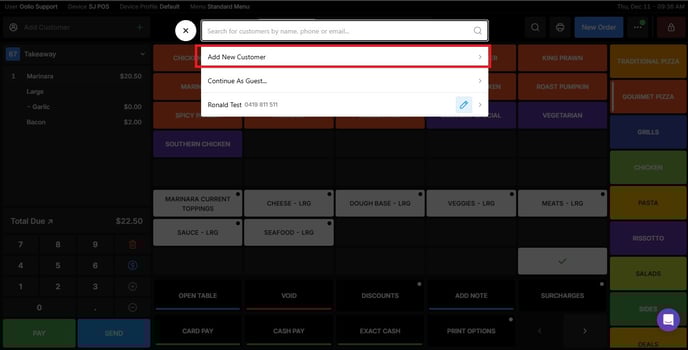
Add a New Customer
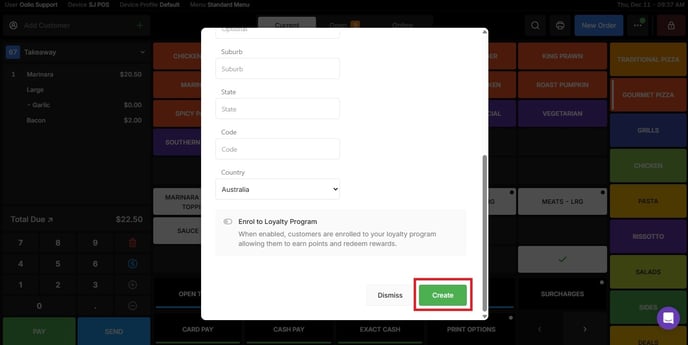
Enter the customer’s details:
- Name
- Phone Number
- Email Address (optional)
- Address (required for delivery orders)
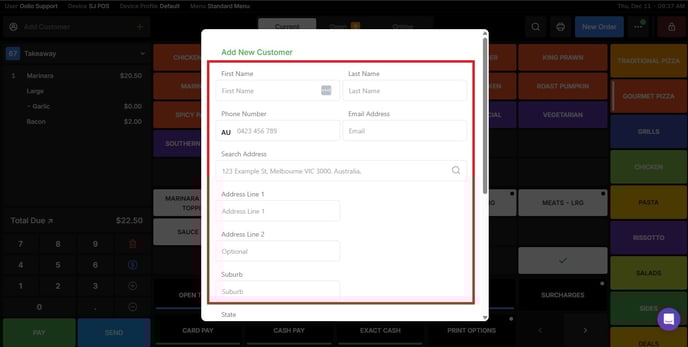
Tap Create when finished.
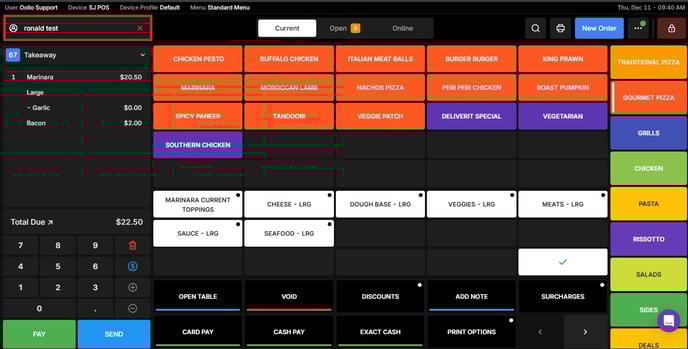
Once done, the selected or newly created customer will be successfully attached to the order.
If you need further assistance, simply click the blue chat icon at the bottom-right corner of the screen to connect directly with our Application Support Team.