
Step-by-Step Guide
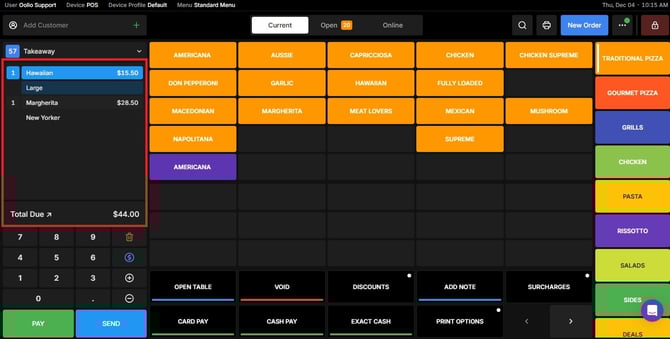
Open the Orders Screen
Navigate to the Orders section.
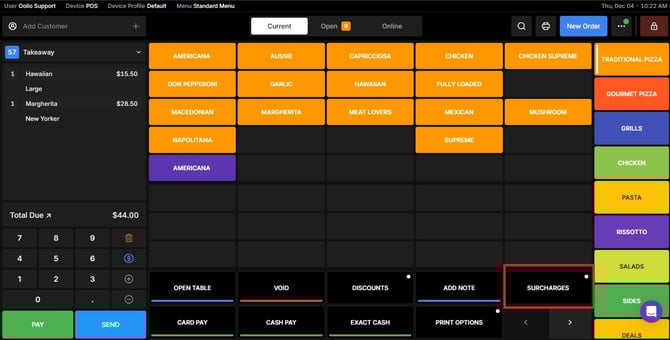
Open the Surcharge Options
Tap the Surcharges button to view the available options.
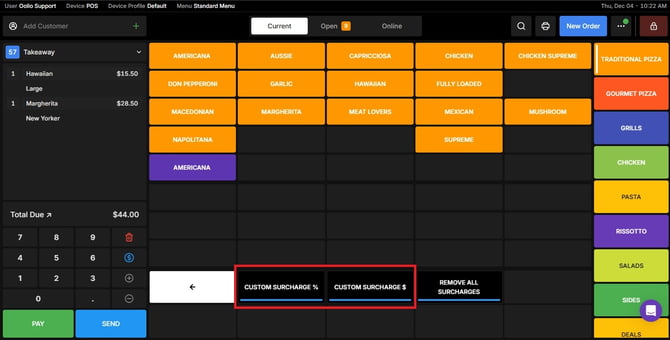
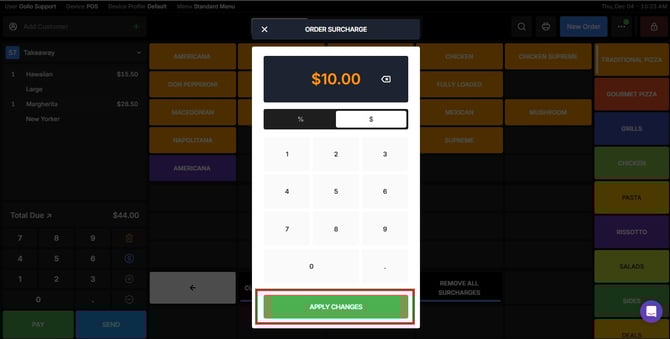
Choose Your Surcharge Type
Select the type of surcharge you want to apply:
- Dollar Amount
- Percentage
Set the Surcharge
Enter the surcharge amount or percentage you want to apply to the order.
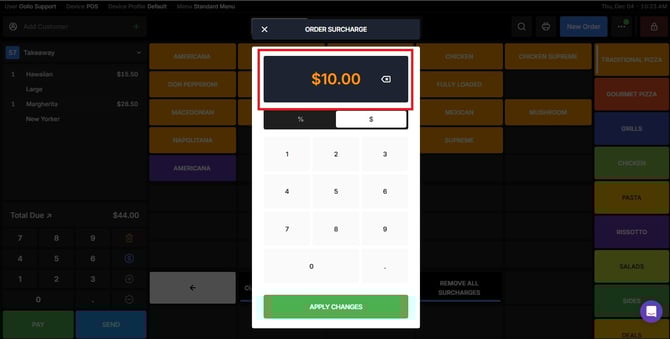
Apply the Changes
Tap Apply Changes to confirm the surcharge.
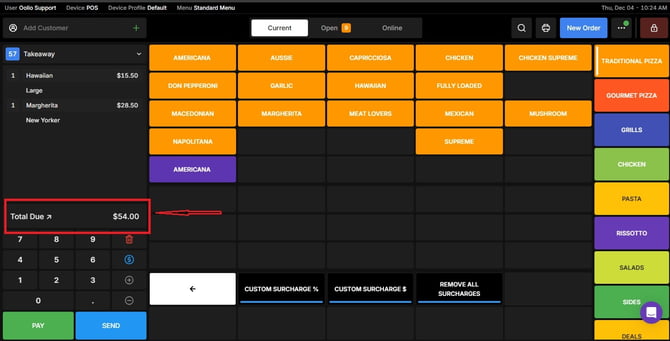
The updated total will now appear on the order screen.
If you need further assistance, simply click the blue chat icon at the bottom-right corner of the screen to connect directly with our Application Support Team.