
Step-by-Step Guide
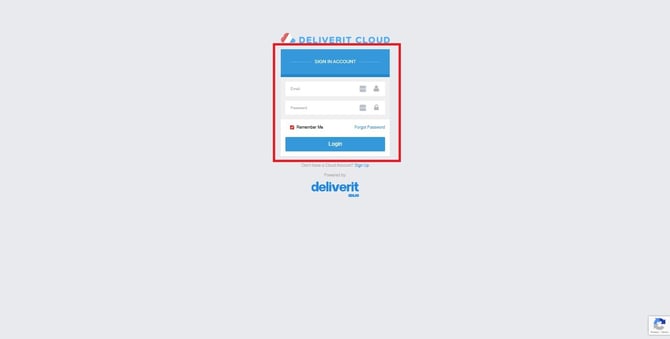
Sign In to Your Cloud Account
Start by logging in to your Cloud platform using your username and password.
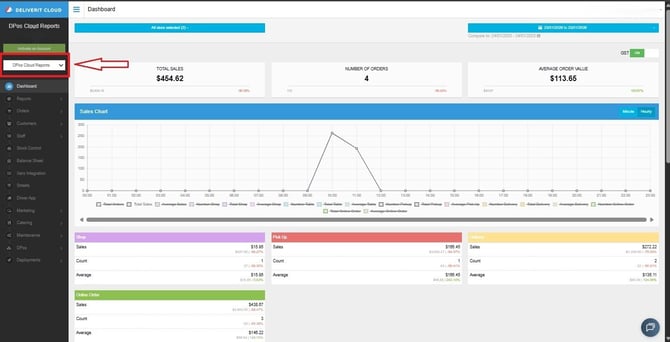
Go to the Reports Section
Once you're on the dashboard:
- Navigate to DPOS Cloud Reports.
Open the Customer Performance Report
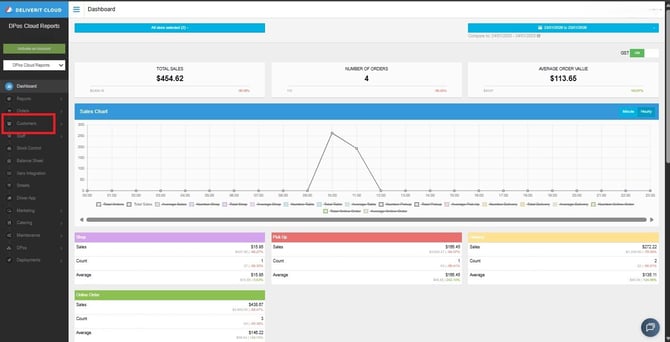
Inside the Reports area:
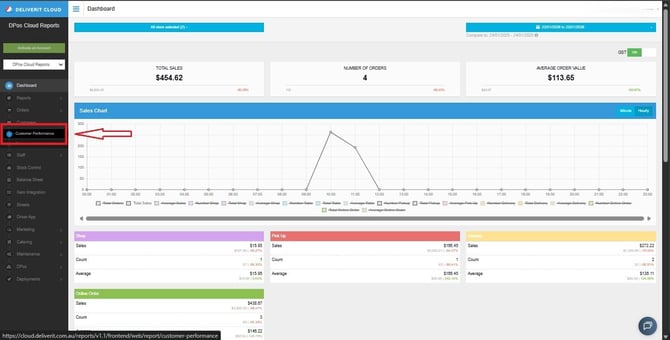
- Click Customers
- Then select Customer Performance
Choose the Transaction Type
Decide what type of customer activity you want to analyze.
You can choose from:
- Pickup
- Delivery
- Shop
- Table Ordering
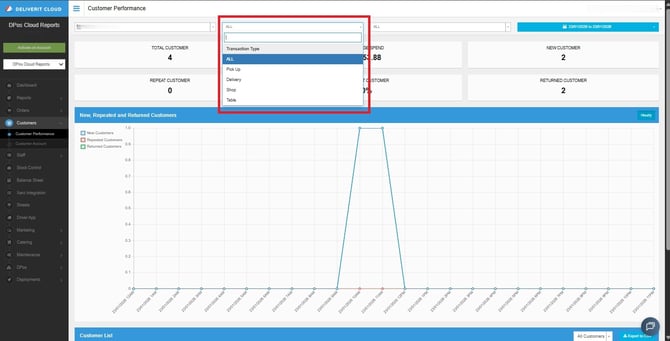
Pick the one that matches the data you’re searching for.
Select the Order Source
Next, choose where the orders came from. Available sources include:
- Deliverit App (IOS / Android Native Apps)
- Deliverit Mobile (Mobile Web Browser)
- Deliverit Web (Desktop Web Browser)
- POS (In store pickup/delivery/takeaway)
- DoorDash (3rd Party Integration)
- UberEats (3rd Party Integration)
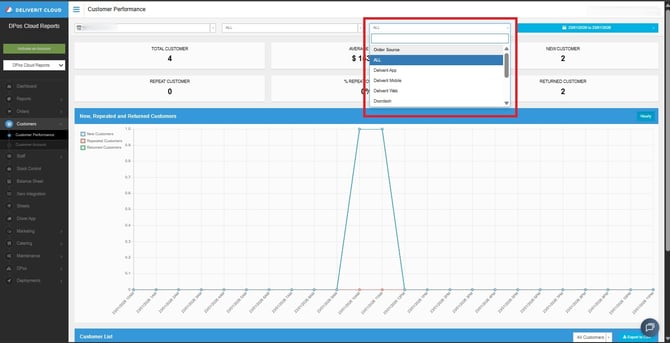
You can select one source based on what you want to analyse.
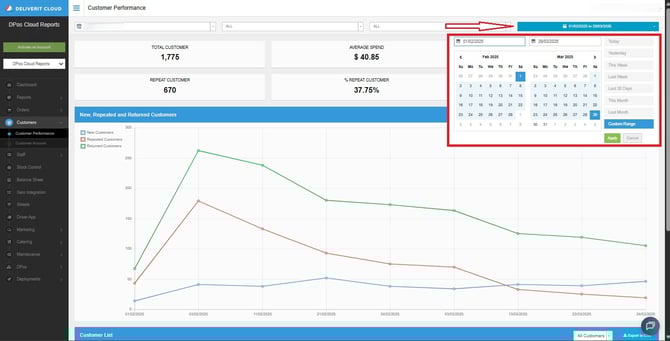
Set the Date Range
Use the date filter at the top right to pick the specific period you want to review, or you can customise a date range and apply.
Review the Customer Insights
Once your filters are set, the system will display key customer performance metrics for the select date range including:
- Total Customers
- Average Spend
- New Customers
- Repeat Customers
- Percentage of Repeat Customers
- Returned Customers
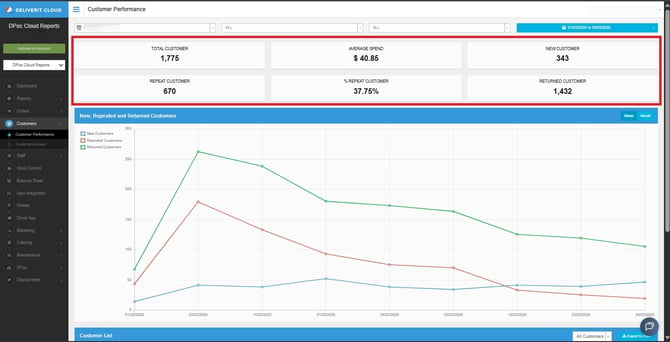
- Trends for the New, Repeated, and returned Customers
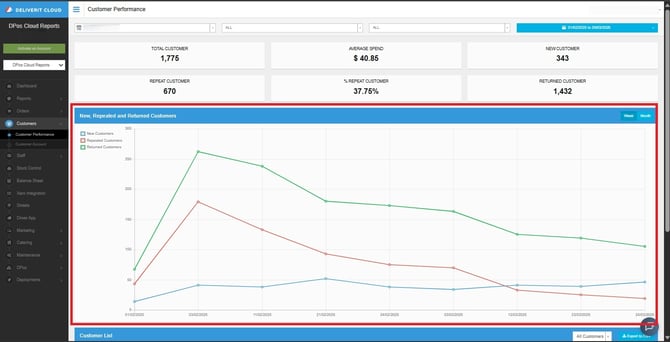
These insights help you identify which customer groups are growing, returning, or spending more.
New Customer
A New Customer is someone who places their first‑ever order during the selected date range.
Example:
- Alice has never ordered before
- She places her first order on 15 Nov 2025
👉 Alice is a New Customer
(Even if she orders again during this period, she is still counted as New because it’s her first time ever ordering.)
Repeat Customer
A Repeat Customer is someone with more than one completed order in your store’s history, regardless of when those orders were placed.
Example:
- Ben ordered once last year
- He places another order this year
👉 Ben is a Repeat Customer
Returned Customer
A Returned Customer is someone who ordered before the selected period, and then orders again during the period.
Example:
- Chris ordered in 2023
- He places another order in Dec 2025
👉 Chris is a Returned Customer
Export Your Data (Optional)
If you want to save or analyse the data outside the platform:
- Click Export to download the report in CSV format.
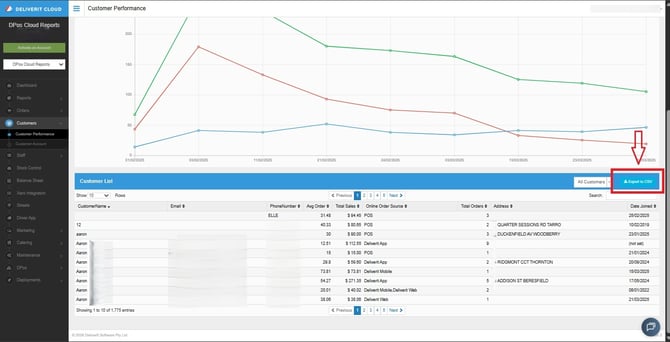
You can also export filtered data by selecting:
- New Customers
- Repeat Customers
- Returned Customers
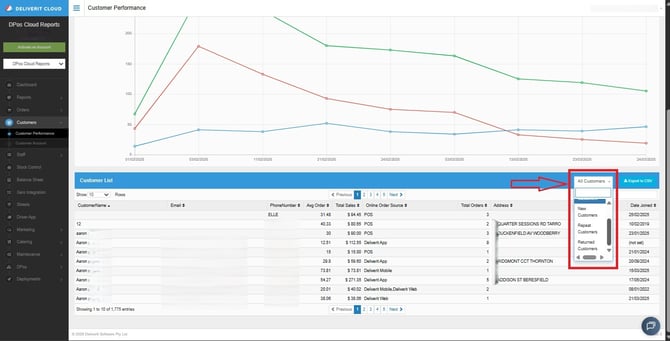
This makes it easier to do deeper analysis or keep data for records.
If you need further assistance, simply click the blue chat icon at the bottom-right corner of the screen to connect directly with our Application Support Team.