
Step‑by‑Step: Adding Instructions to an Order
Log in to DPOS
- Log in to the DPOS system using your credentials.
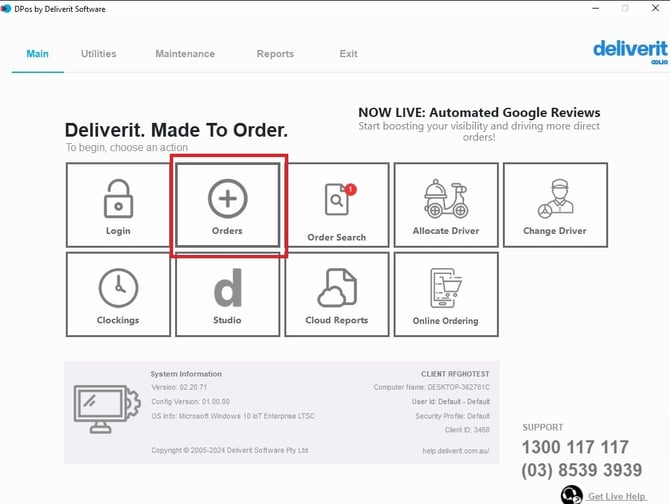
Open the Order Section
- Navigate to the Order section.
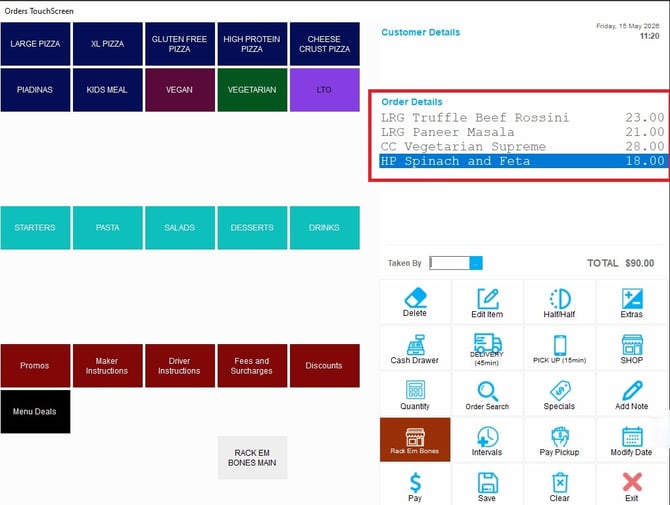
Take the Order
- Add the required items to the order as usual.
Adding Cooking Instructions
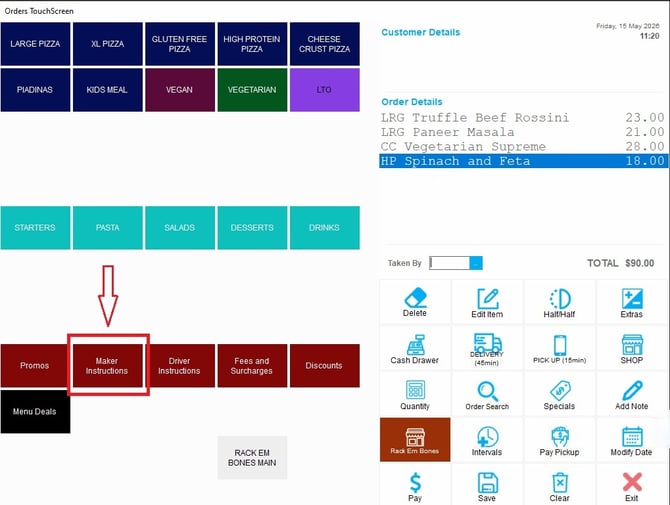
Open Maker Instructions
- Click the Maker Instructions button.
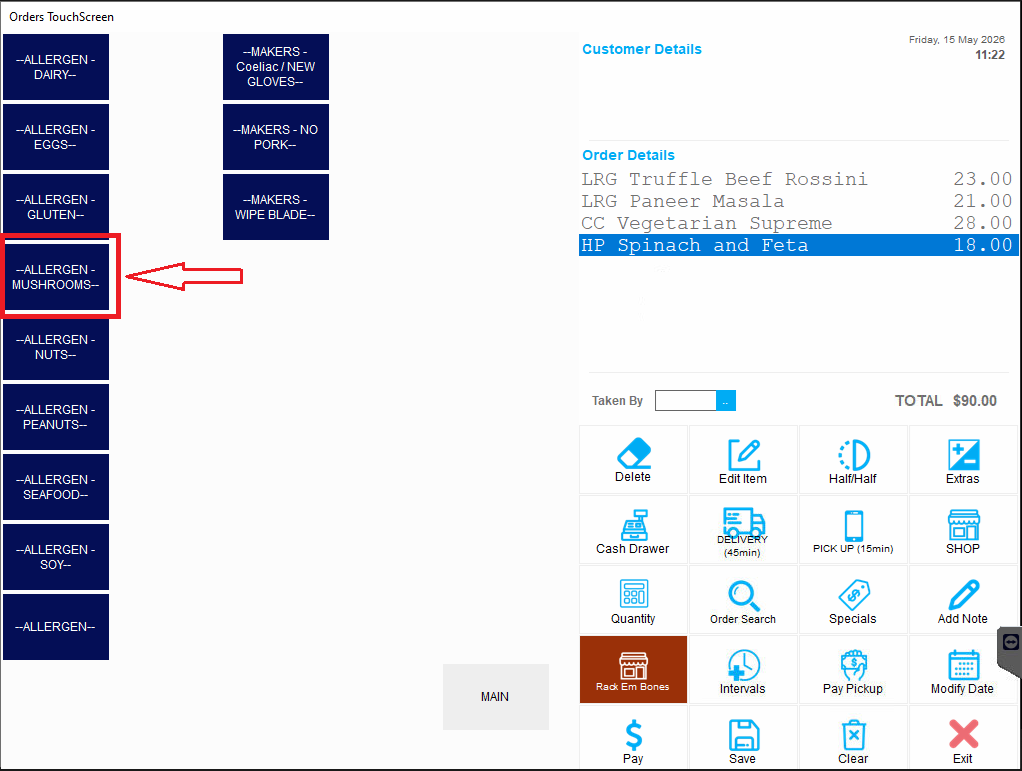
Select Instructions
- Choose the appropriate instructions for the kitchen (e.g., special preparation requests).
Confirm
- The selected instructions will be automatically added to the order and sent to the kitchen.
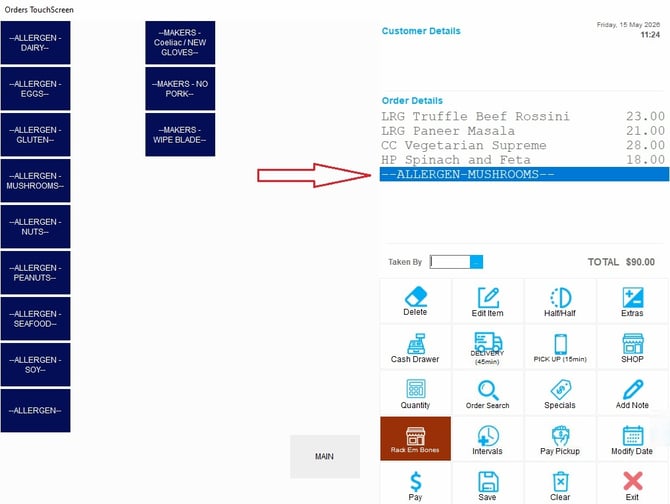
Adding Driver Instructions
Open Driver Instructions
- Click the Driver Instructions button.
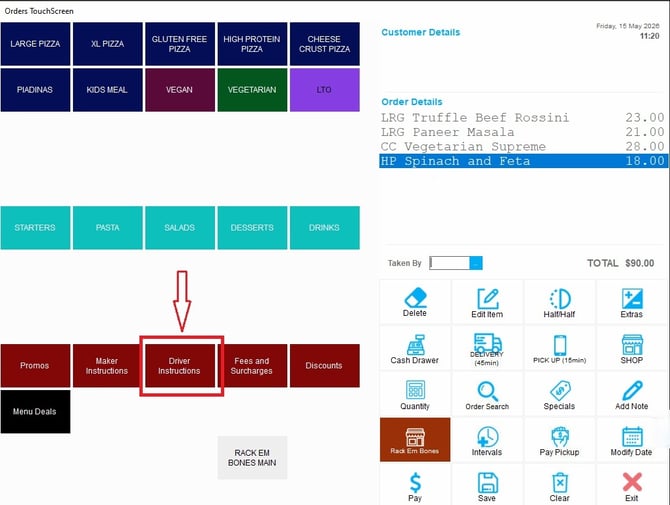
Select Instructions
- Choose the relevant instructions for the delivery driver (e.g., delivery notes or directions).
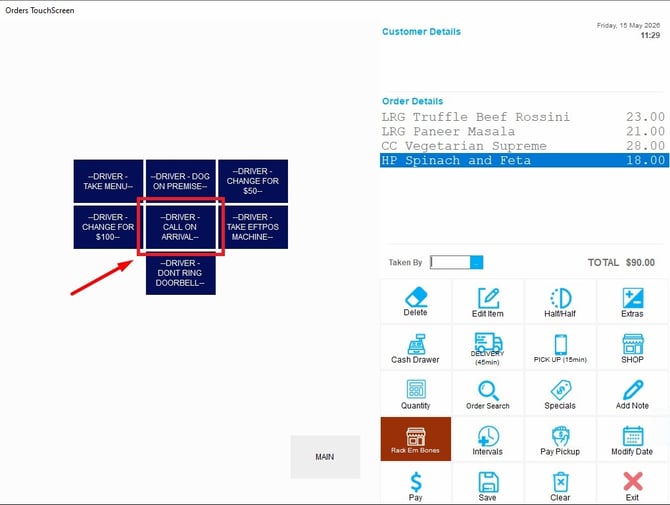
Confirm
- The instructions will be added to the order and shared with the driver.
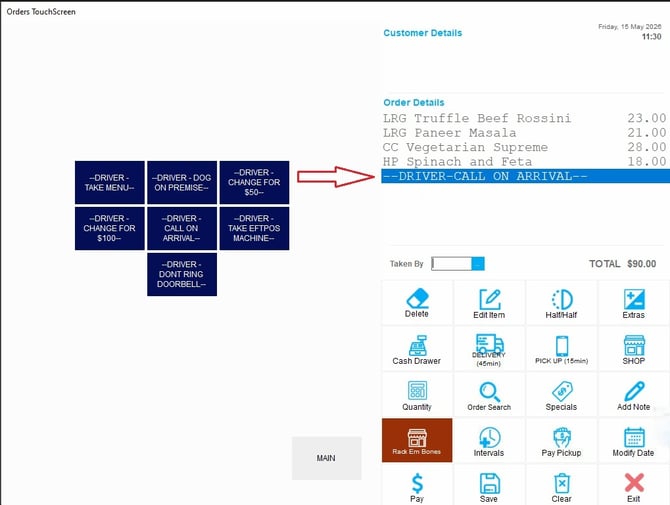
Proper instructions help improve order accuracy and customer satisfaction. If you need further assistance, simply click the blue chat icon at the bottom-right corner of the screen to connect directly with our Application Support Team.