
Step-by-Step Guide
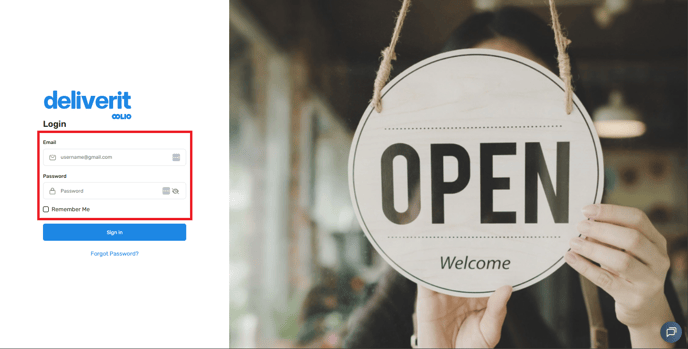
Log in to Deliverit Studio
- Go to Deliverit Studio.
- Enter your Cloud username and password to access your account.
Ensure the Discount Item Is Created
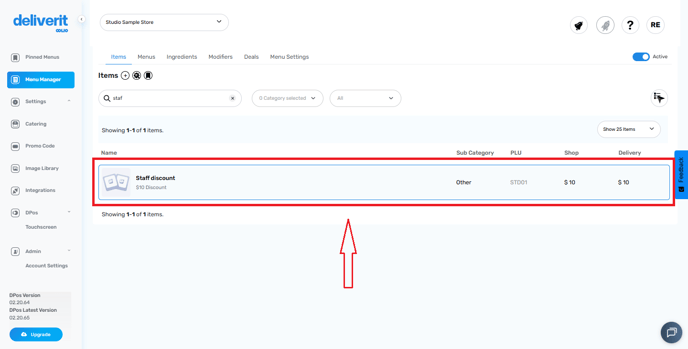
Before you can add the button, make sure the Staff Discount item code (PLU) has already been created and configured correctly.
For Example: STD01
Tip:
If you require assistance with creating the item code please follow the following help guide link.
Open the DPos Touchscreen Editor
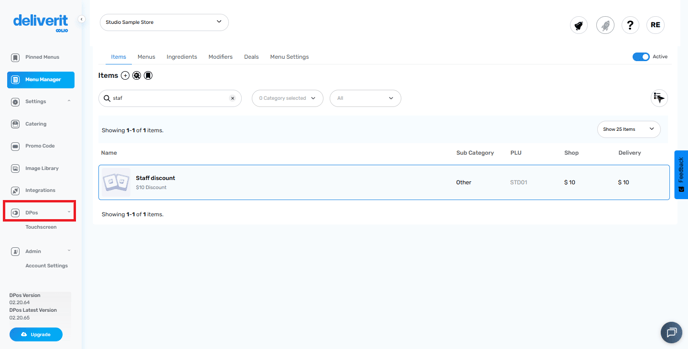
- From the Studio dashboard, go to DPos.
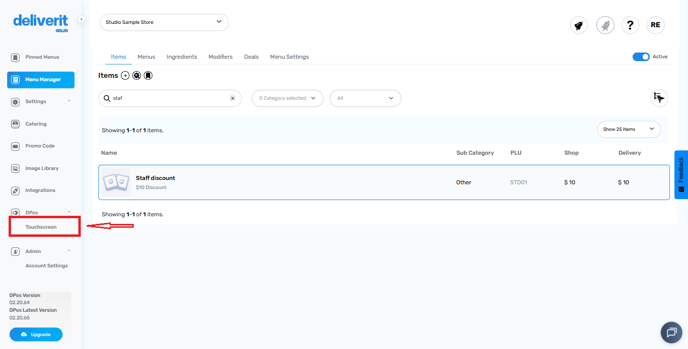
- Select Touchscreen.
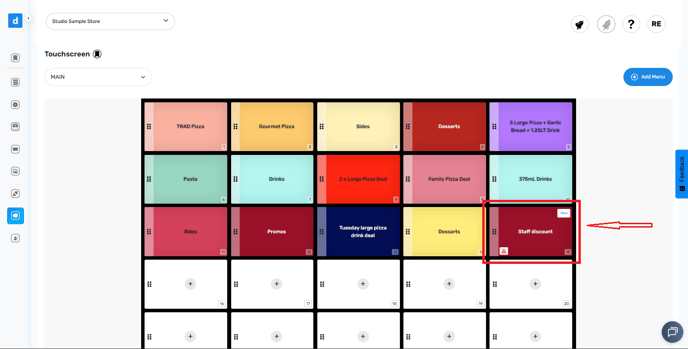
Add the Staff Discount Button
- Locate an empty or blank space on your touchscreen layout.
- Click the ➕ (Add Item) button.
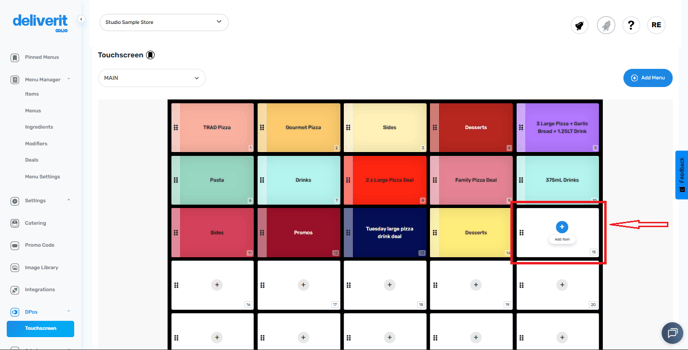
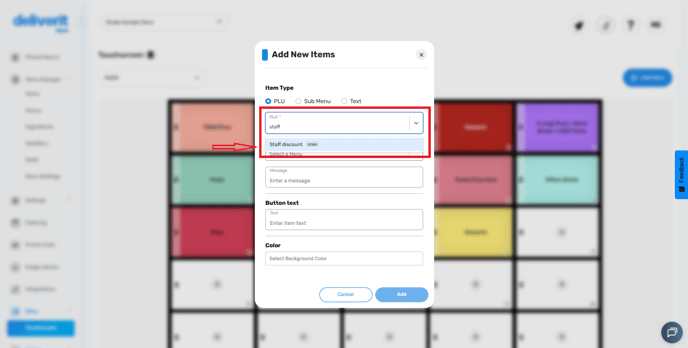
- In the drop-down, type the PLU (Product Code) of your Staff Discount item.
- Choose a button colour to make it easy to identify.
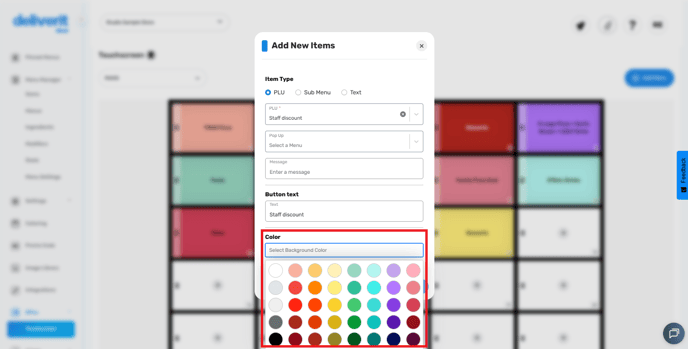
- Click Add to save the button.

Deploy the Changes
- Click the Rocket icon to deploy your changes.
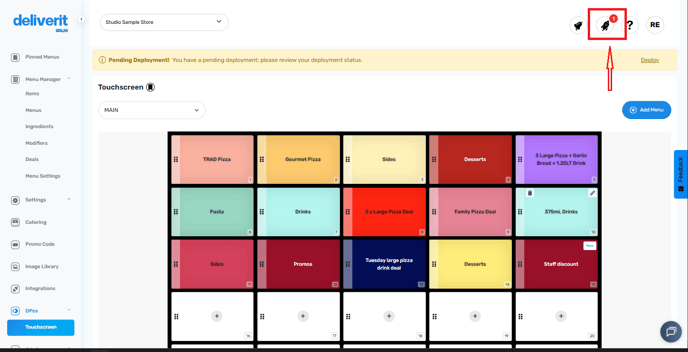
- Once finished, the Staff Discount button will appear on your DPos touchscreen.
By following these steps, you will be able to add and configure the Staff Discount button on your DPos Touchscreen efficiently.
If you need further assistance, simply click the blue chat icon at the bottom-right corner of the screen to connect directly with our Application Support Team.