
Take an Order
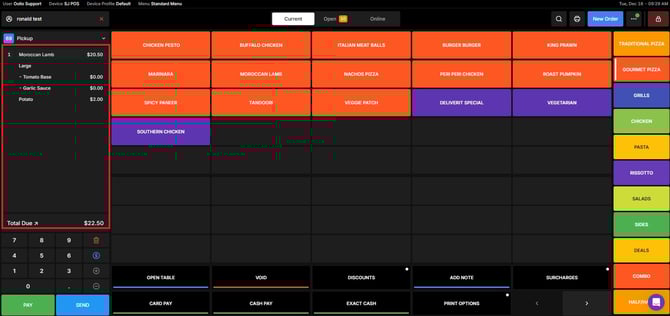
- Start by creating or selecting an order as you normally would.
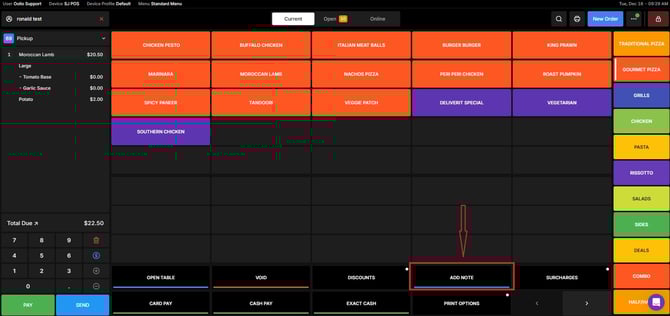
 Click the Add Note Button
- Once the order is ready, look for the Add Note button and click on it.
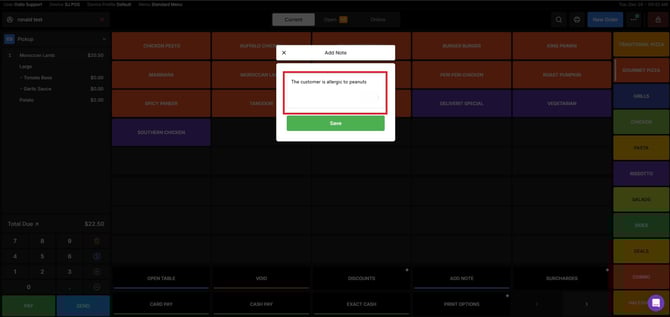
Fill in the Note
- In the Add Note section, type the details you want to include.
- Example Note:
“The customer is allergic to peanuts.”
 Save the Note
- After entering the note, click Save.
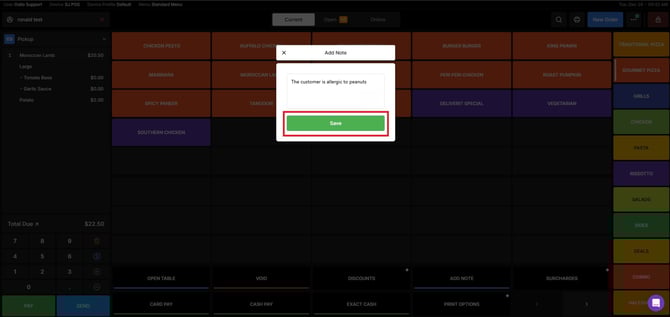
- The note will now be attached to the order for your team to see.
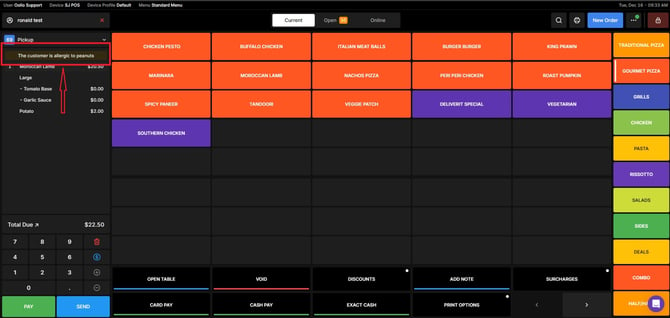
Adding notes in Oolio POS helps ensure special requests and important details are not missed. For further assistance, simply click the blue chat icon at the bottom-right corner of the screen to connect directly with our Application Support Team.