
Note: To use this feature, your system must be running DPOS version V02.20.72 or above.
Step-by-Step Instructions
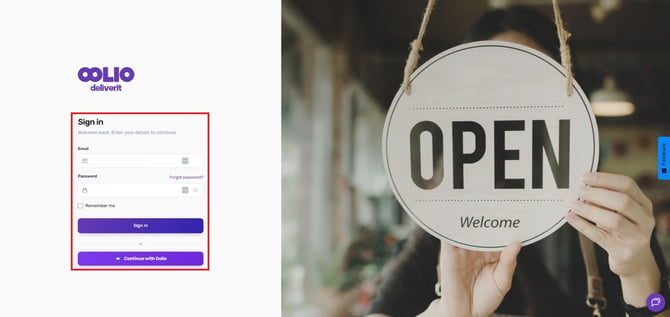
Log in to Deliverit Studio
Go to https://my.deliverit.com.au and sign in with your admin credentials.
Navigate to the Touchscreen Section
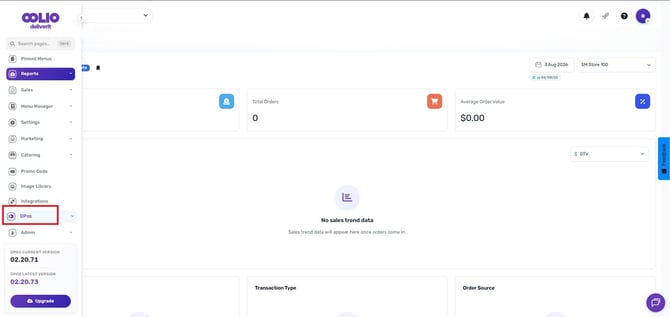
From the left-hand menu, click DPOS.
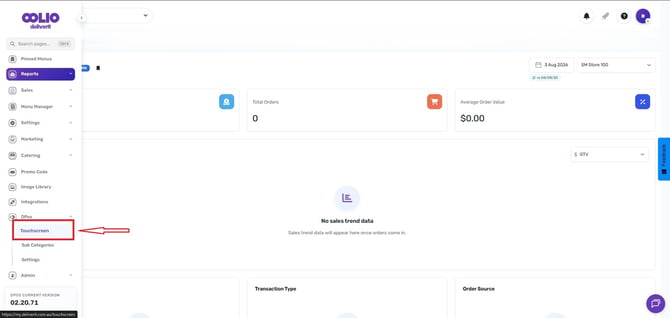
Then, select Touchscreen from the submenu.
Select a Menu
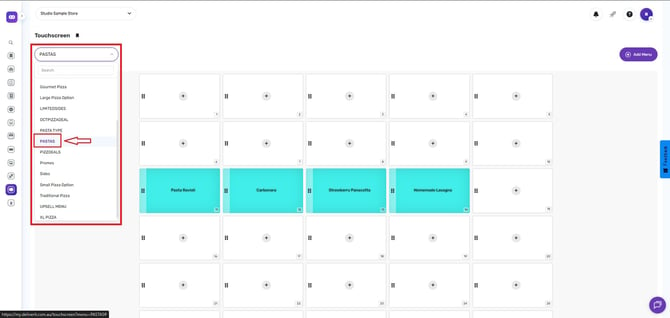
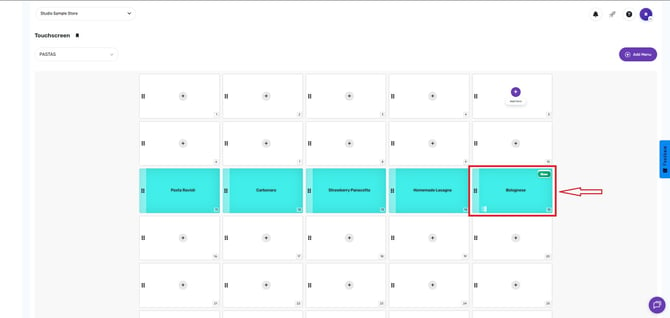
Choose the Menu you want to add the item to from the dropdown menu.
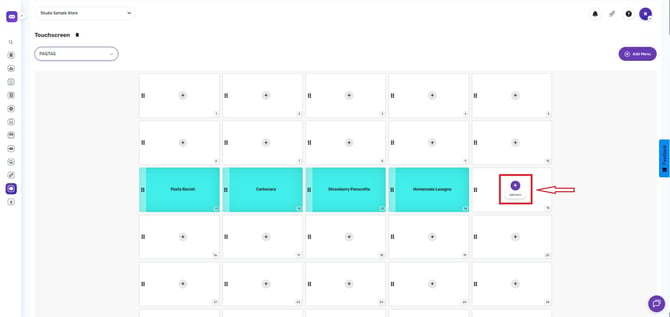
Pick a Button Slot
Click on any empty button space and click the Add Item (+) button.
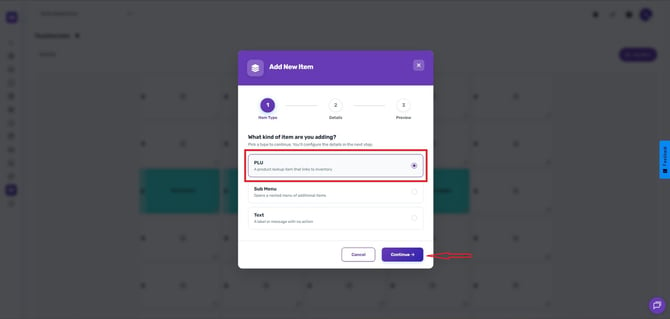
Select Product Code and click continue.
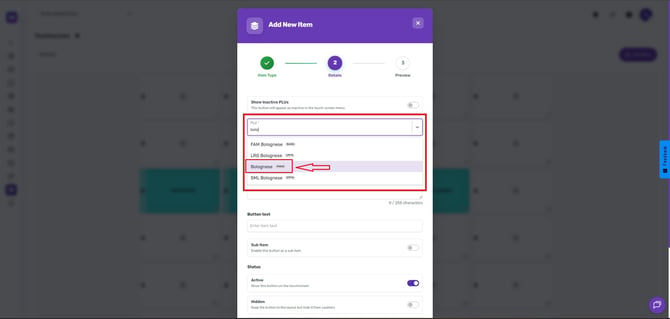
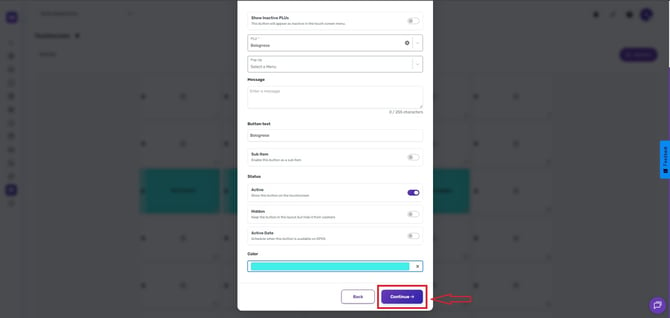
Search and Select the Item
In the PLU (Description) dropdown, search for the item you want to add.
️ Note:
Make sure the item has been fully configured and has the correct pricing set.
For detailed steps on setting up an item, refer to this guide: How to Use the Add Item Wizard on Deliverit Studio
Choose a Button Colour
Select a colour to help visually identify the item on the touchscreen.
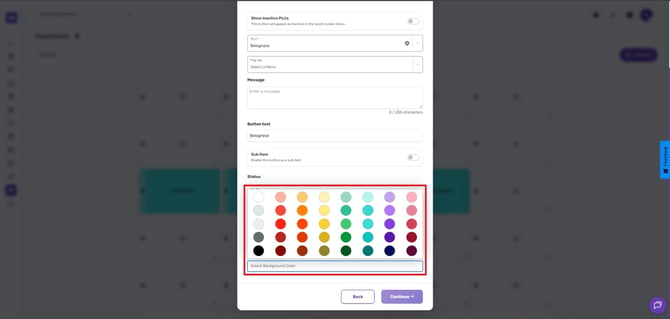
When done, click continue.
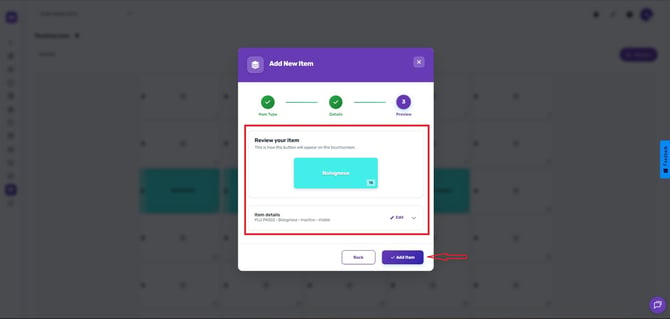
Review the Item details and click the add item button.
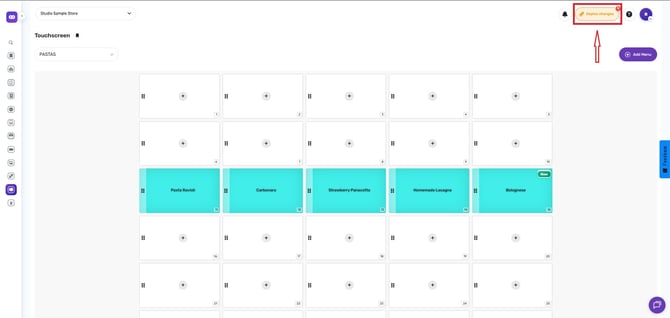
Deploy Changes
Click the rocket icon.
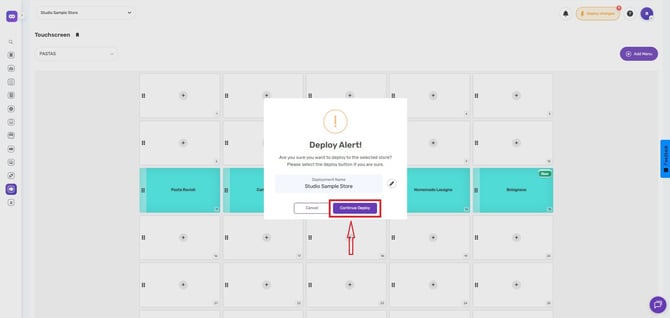
Hit the deploy button.
Note:
Changes to flow to your DPos application immediately, please take a moment to review the updates on the store computers.
By following these steps, you will be able to add DPos menu buttons from Deliverit Studio efficiently.If you need further assistance, simply click the blue chat icon at the bottom-right corner of the screen to connect directly with our Application Support Team.