
Log in to Studio
-
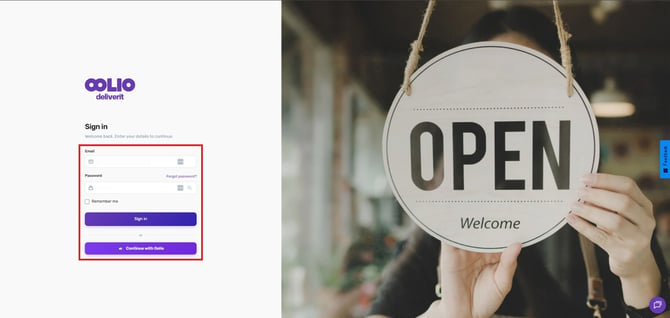
Go to my.deliverit.com.au.
-
Sign in using your Studio account credentials.
Navigate to DPOS Settings
-
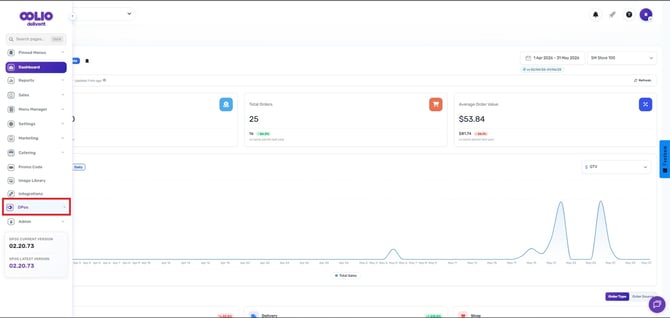
Click DPOS from the left-hand navigation menu.
-
Select Settings.
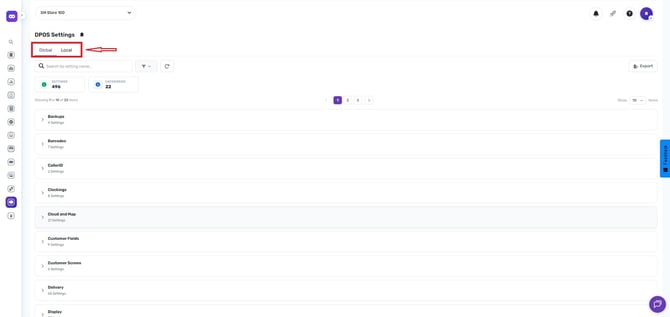
The DPOS Settings page contains two tabs:
-
Global Settings
-
Local Settings
Global Settings
The Global Settings tab contains system-wide DPOS settings that can affect multiple areas of the platform.
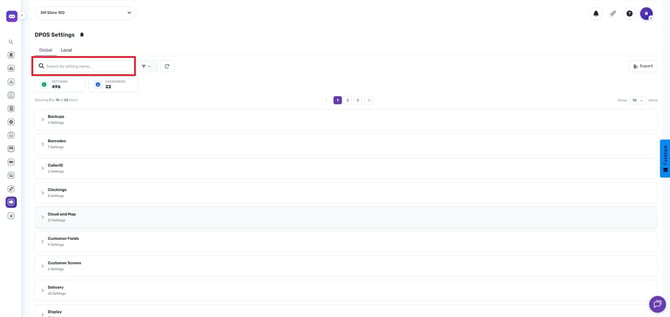
Search for Settings
Use the search bar to locate a specific setting by name.
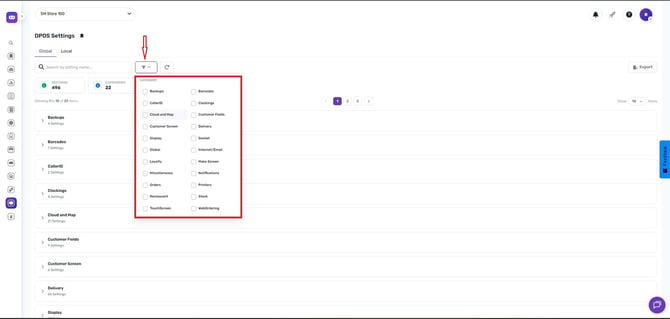
Filter by Category
You can narrow your search using the available category filters:
- Backups
- Caller ID
- Cloud and Map
- Customer Screen
- Display
- Global
- Loyalty
- Miscellaneous
- Orders
- Restaurant
- Touchscreen
- Barcodes
- Clockings
- Customer Fields
- Delivery
- Docket
- Internal/Email
- Make Screen
- Notifications
- Printers
- Stock
- Web Ordering
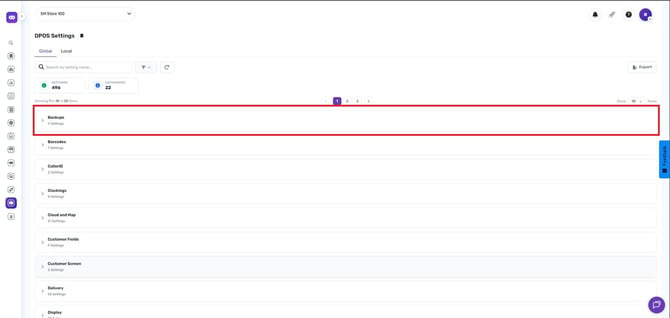
View and Manage Settings
View the total number of settings and categories available.
- Click on a specific setting to open and review its configuration.
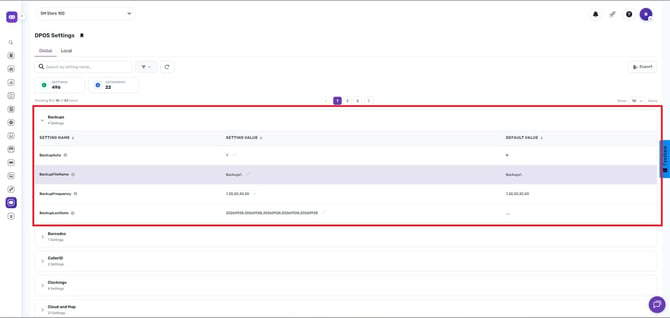
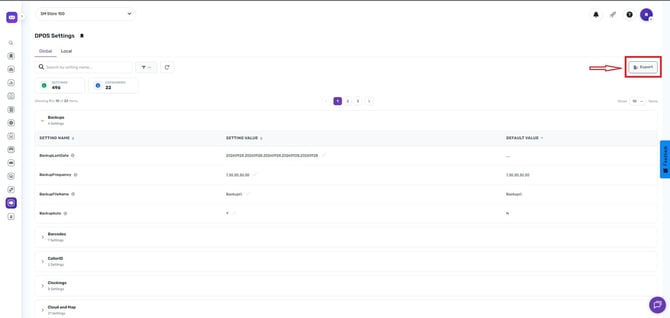
- Export settings data by clicking the Export button.
Local Settings
The Local Settings tab contains settings specific to individual DPOS computers or workstations.
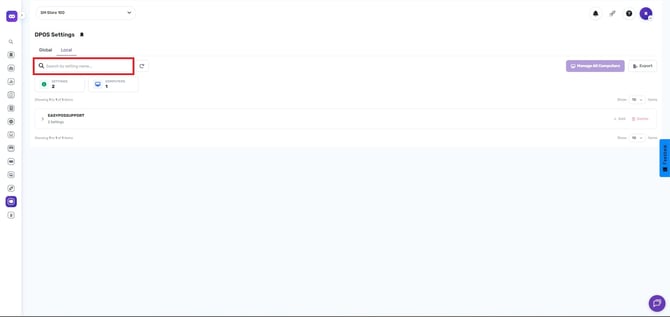
Search for Settings
Use the search bar to locate a specific setting by name.
View Local Settings
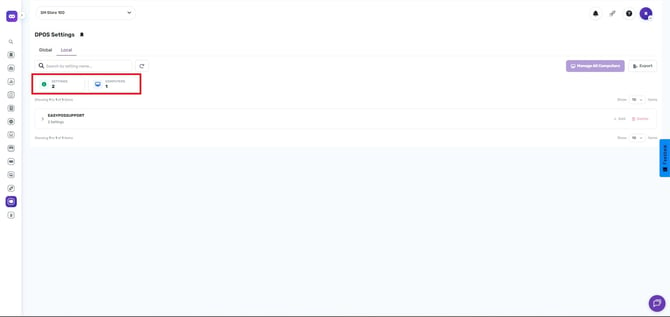
Within this tab, you can view:
- Total Settings
- Computers associated with the settings
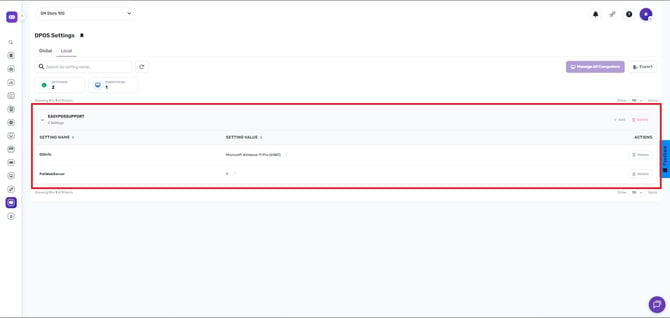
Open a Setting
Click on a specific setting to view its configuration details.
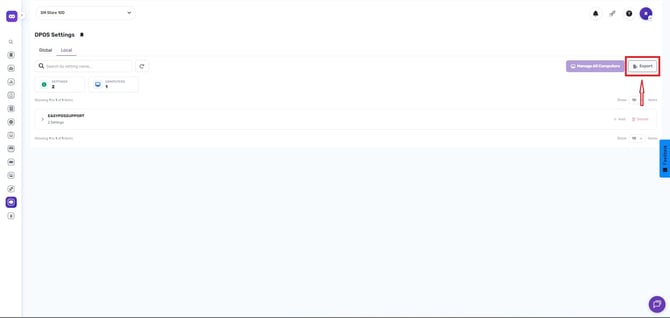
Export Settings
Click Export to download the local settings data for reporting or review purposes.
Tip: Use the search and filter options to quickly locate specific settings without manually browsing through all available configurations.
DPOS Settings contain important operational configurations that can affect system functionality, integrations, printing, ordering, reporting, and customer workflows. Only make changes if you understand their purpose and impact.