
Accessing the Report
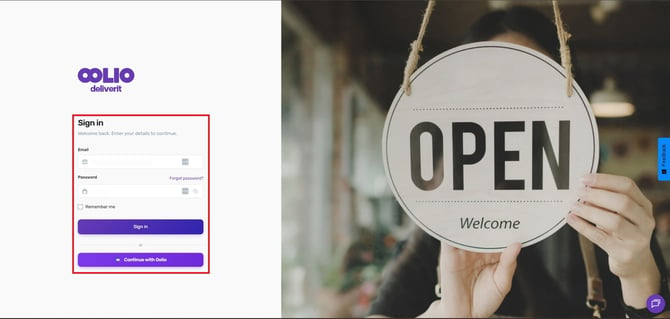
- Log in to Studio at my.deliverit.com.au.
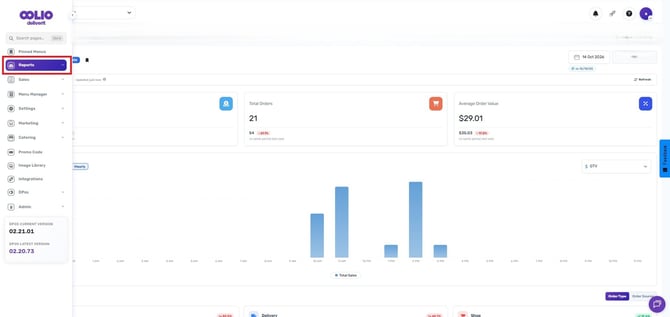
- Navigate to Reports.
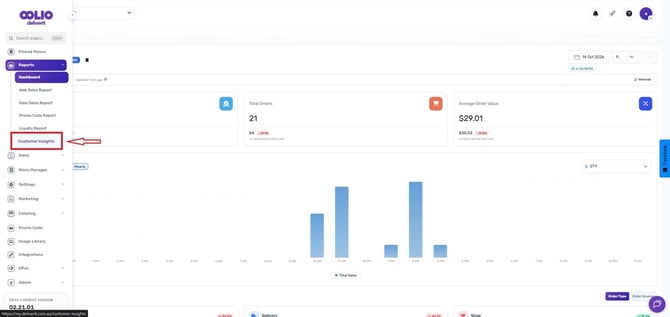
- Select Customer Insights.
- Choose your desired date range.
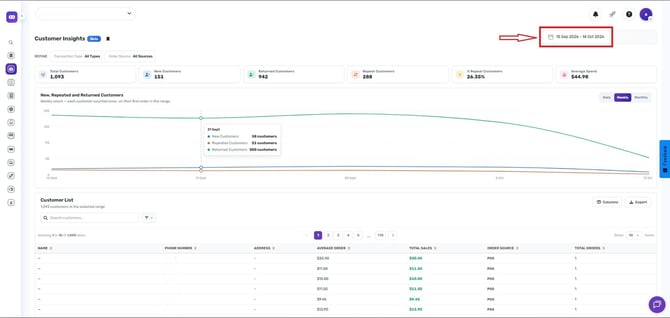
- If you manage multiple stores, select the relevant store(s).
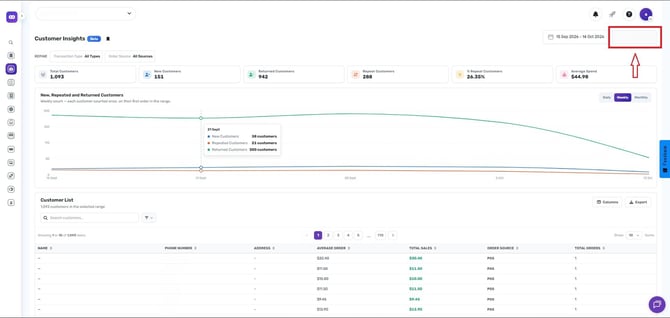
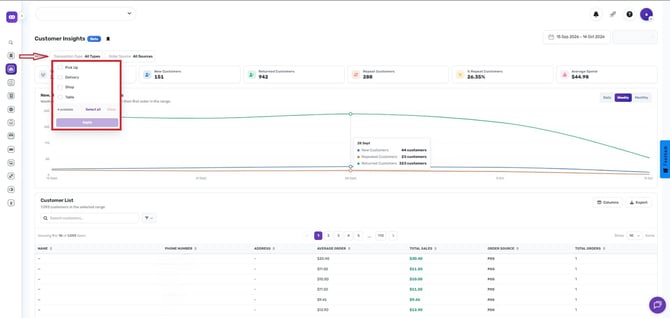
Refine the report using the available filters:
- Pick Up – Orders collected by the customer from the store.
- Delivery – Orders are delivered directly to the customer's address.
- Shop – Orders placed through the online shop for products or merchandise.
- Table – Orders placed by customers using QR table ordering while dining in the store.
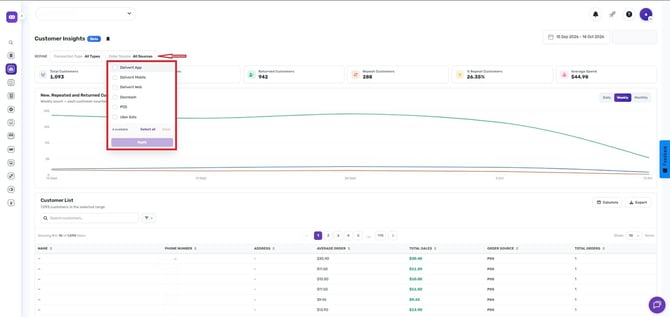
Order Source
- Deliverit App - Orders placed through IOS or Android native applications.
- Deliverit Mobile - Orders placed through the mobile browser version on mobile phones or tablet devices.
- Deliverit Web - Orders placed through a web browser on a desktop or laptop device.
- POS - Orders entered directly through the DPOS system in-store.
- DoorDash - Integrated Orders received through the DoorDash platform.
- UberEats - Integrated Orders received through the Uber Eats platform.
Customer Summary
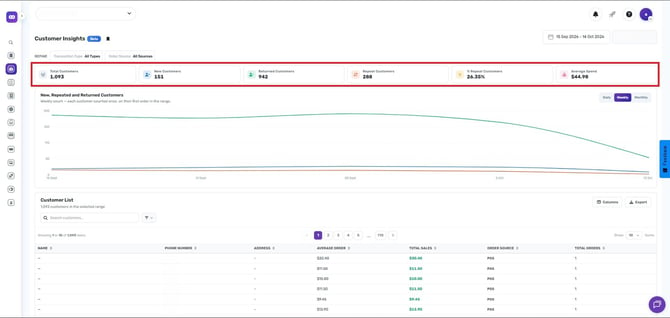
The report displays the following key metrics:
- Total Customers – Total number of unique customers within the selected period.
- New Customers – Customers who placed their first order during the selected period.
- Returned Customers – Customer had already ordered before the selected date range and then placed another order(s) during the selected period.
- Repeat Customers – Customer placed more than one order during the selected date range.
- Repeat Customer Percentage – Percentage of customers who returned and reordered.
- Average Spend – Average amount spent per customer.
Customer Trends Chart
The Customer Trends Chart provides a visual overview of customer activity over time, including:
- New Customers
- Repeat Customers
- Returned Customers
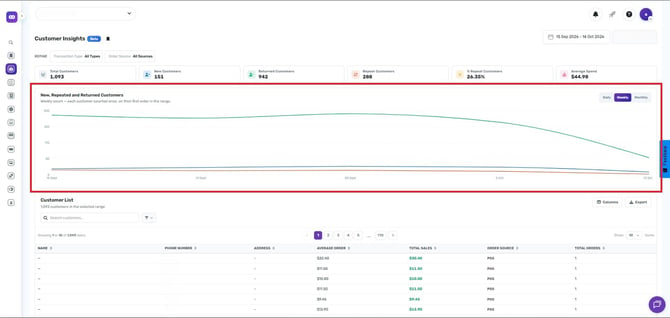
You can view trends by:
- Daily
- Weekly
- Monthly
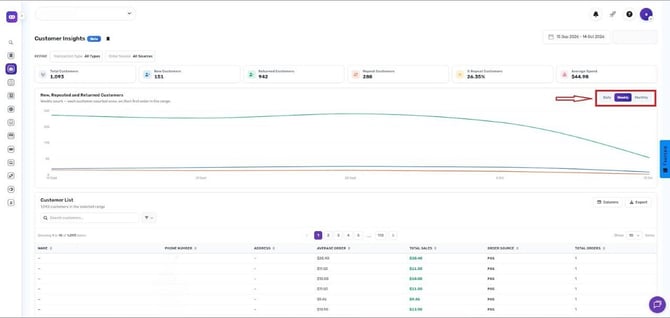
This chart helps identify customer growth, retention patterns, and recurring purchasing behavior.
Customer List
The Customer List provides detailed customer information and allows you to:
- Search for a specific customer.
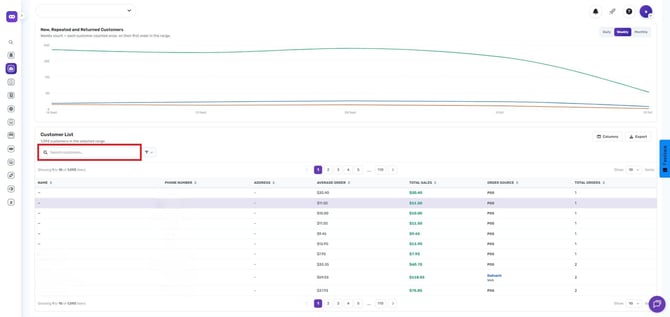
- Filter customers by:
- New Customers
- Repeat Customers
- Returned Customers
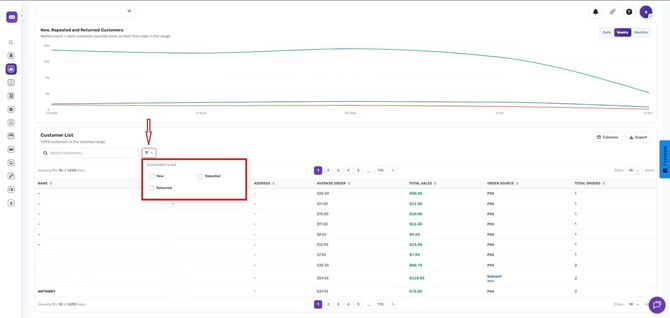
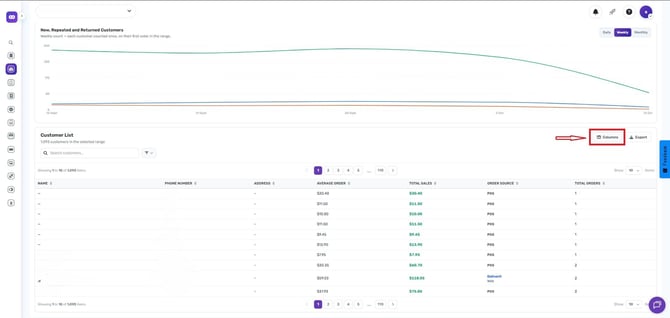
Manage Columns
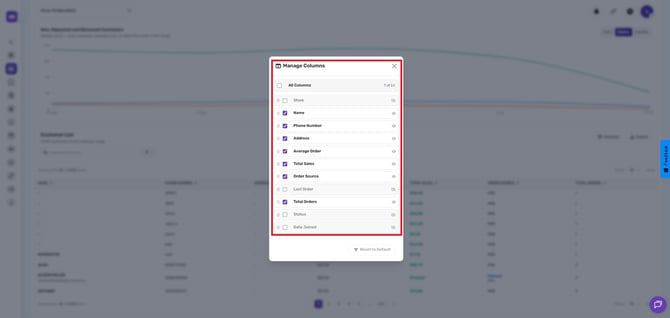
Customize the information displayed in the customer list by selecting from the following columns:
- Store
- Name
- Phone Number
- Address
- Average Order Value
- Total Sales
- Order Source
- Last Order Date
- Total Orders
- Status
- Date Joined
Additional options include:
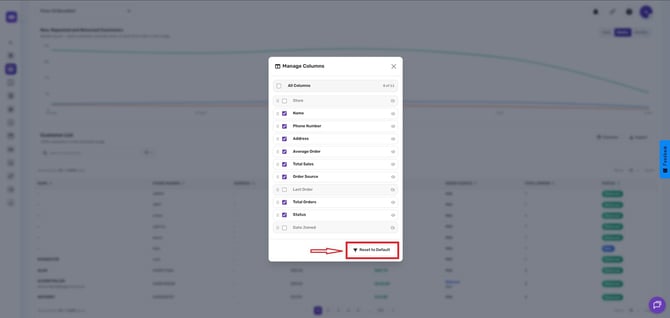
- Reset to Default – Restore the default column selection.
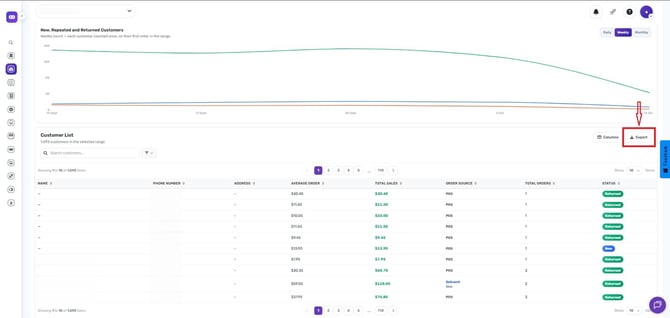
- Export – Download the customer list for further analysis.
If you need further assistance, simply click the blue chat icon at the bottom-right corner of the screen to connect directly with our Application Support Team.