
Step-by-Step Guide
Log in to DPos Cloud Reports
-
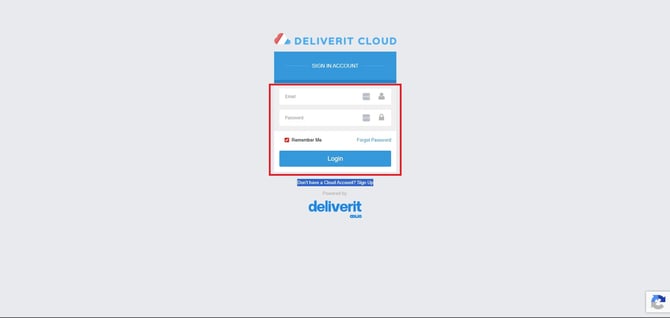
Open your browser and log in to your https://cloud.deliverit.com.au/
Navigate to Staff Section
-
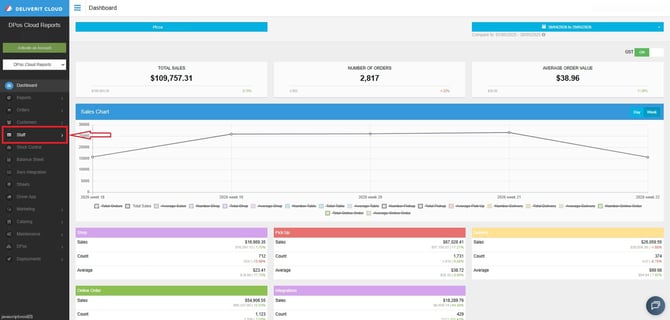
From the main dashboard, go to the Staff section.
Select Clock-In Report
-
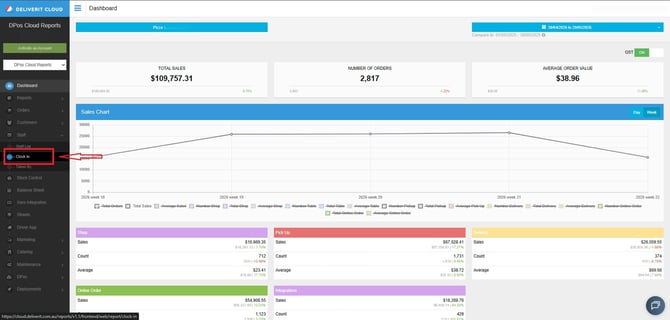
Click on Clock In to open the staff clock-in report.
Choose the Store
-
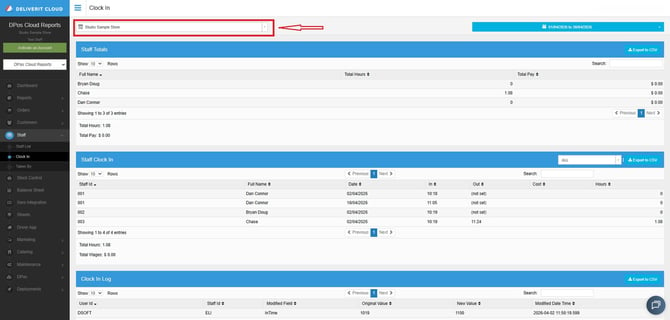
Select the store you want to view data for.
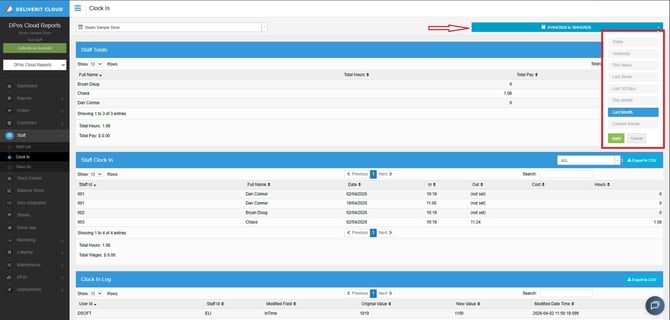
Set the Date Range
-
Choose the date range for the report (e.g., daily, weekly, or custom dates).
Understanding the Report
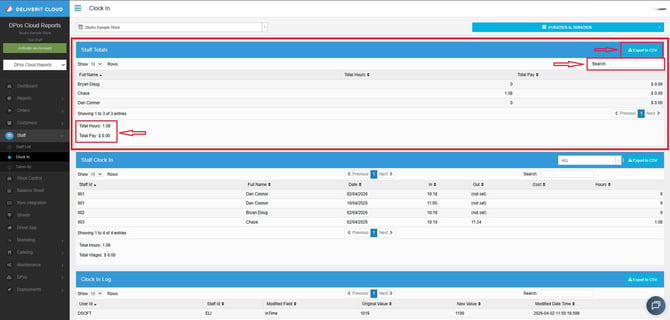
Staff Totals
-
Displays a summary of staff activity, including:
-
Total Hours Worked
-
Total Pay/Wages (optional)
-
-
Use the search field to find a specific staff member.
-
Option to export data for reporting or payroll purposes.
Staff Clock Details
-
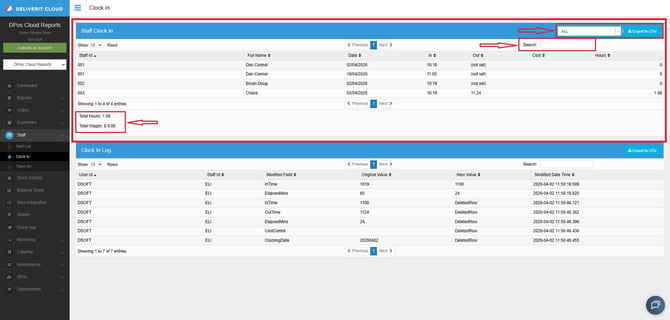
Provides a detailed breakdown of each staff member’s clock-in activity.
Includes:
-
Individual clock-in and clock-out records
-
Total hours worked
-
Total wages
-
Search for a specific staff member
-
Export data as needed
Clock-In Log
Available Filters:
-
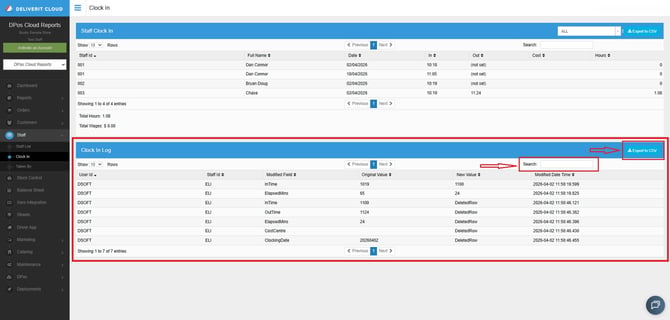
Tracks all changes and updates made to clock-in records.
-
User ID
-
Staff ID
-
Modified Field
-
Original Value
-
New Value
-
Modified Date & Time
-
Search for a specific staff member
-
Export data as needed
Regularly reviewing the Staff Clock-In report helps ensure accurate payroll, track staff attendance, and maintain reliable records. If you need further assistance, simply click the blue chat icon at the bottom-right corner of the screen to connect directly with our Application Support Team.