
Step-by-Step Guide
Log in to DPos Cloud Reports
-
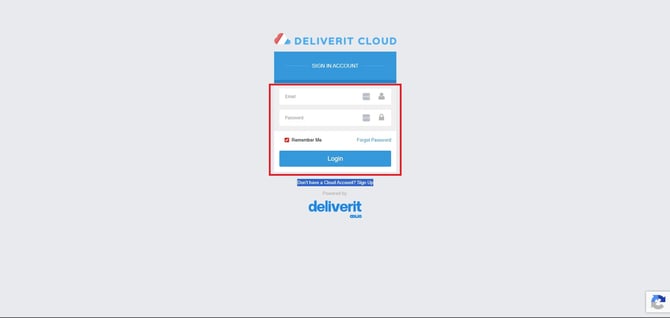
Open your browser and log in to your https://cloud.deliverit.com.au/
Navigate to Reports
-
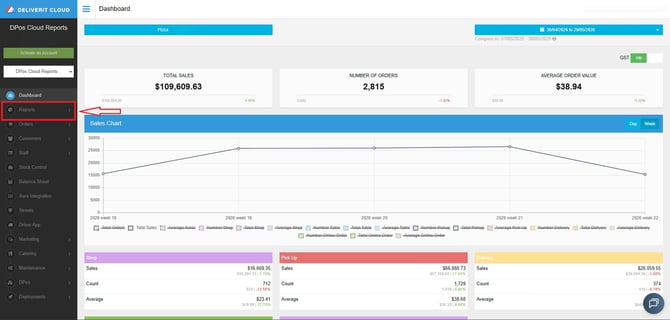
From the main dashboard, go to the Reports section.
Select Item Sales Report
-
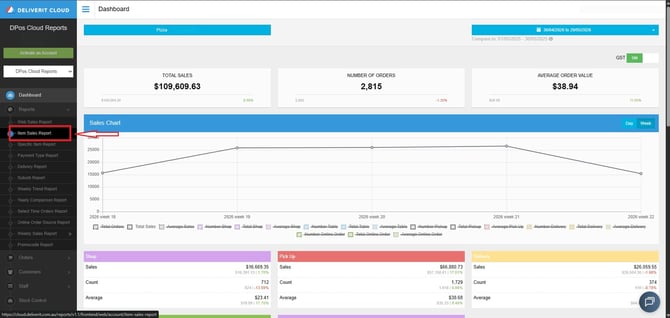
Locate and click on the Item Sales Report option.
Choose the Store
-
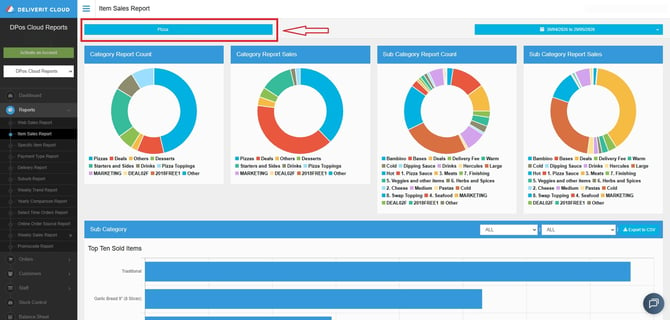
Select the store you want to generate the report for.
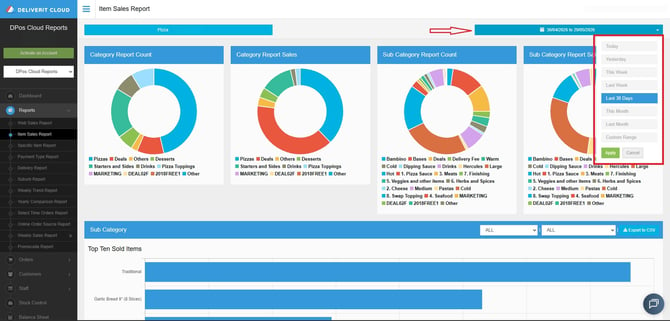
Set the Date Range
-
Choose the date range you want to analyse (e.g., daily, weekly, or custom dates).
Understanding the Report
Once generated, the report will display the following:
Charts and Insights
-
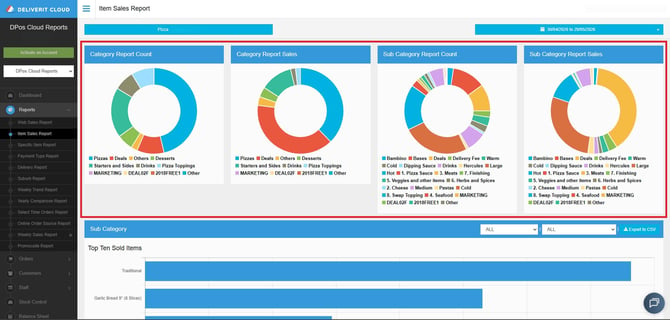
Category Report Count – Number of items sold per category
-
Category Report Sales – Total sales per category
-
Subcategory Report Count – Number of items sold per subcategory
-
Subcategory Report Sales – Total sales per subcategory
Filtering Options
-
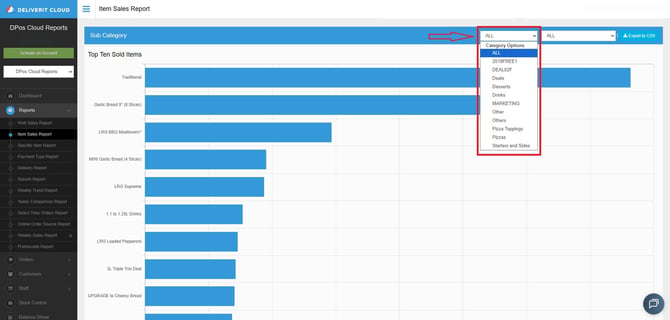
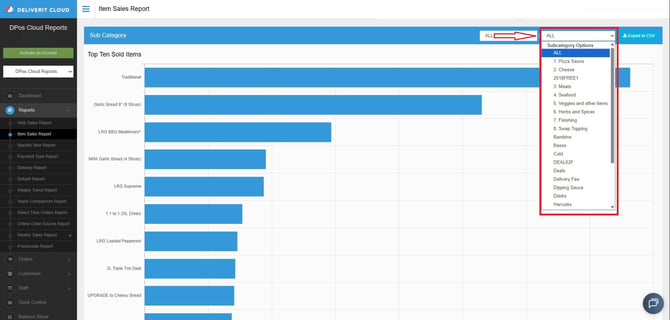
Apply filters to focus on specific categories or subcategories for more detailed analysis.
Additional Data Available
-
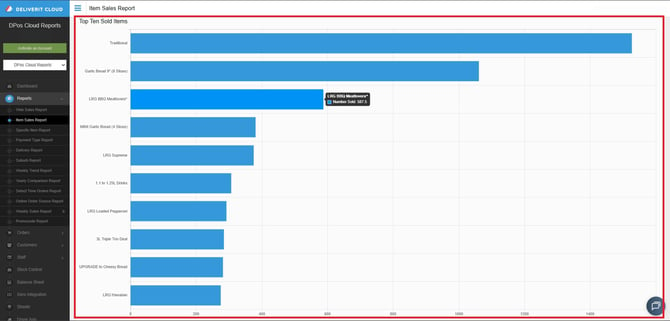
Top 10 Items Sold – Highlights best-performing items
-
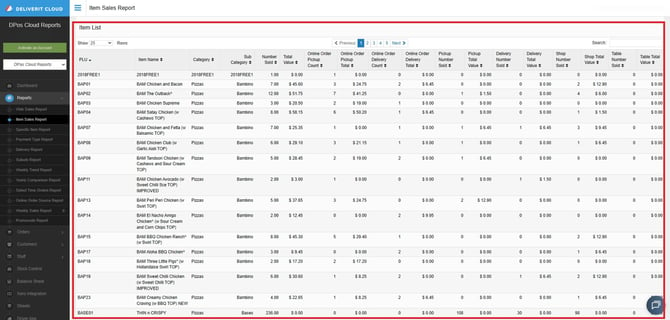
Item List – Full breakdown of all items included in the report
-
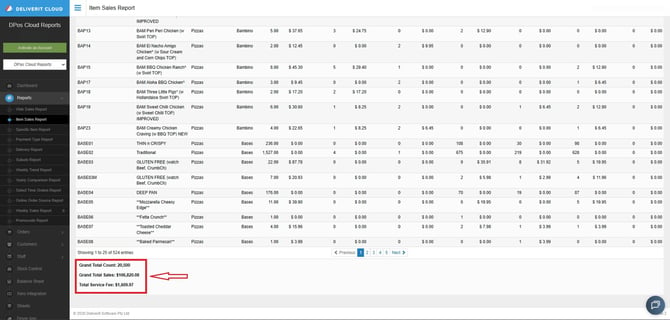
Grand Total – Overall sales value for the selected period
Exporting the Report
-
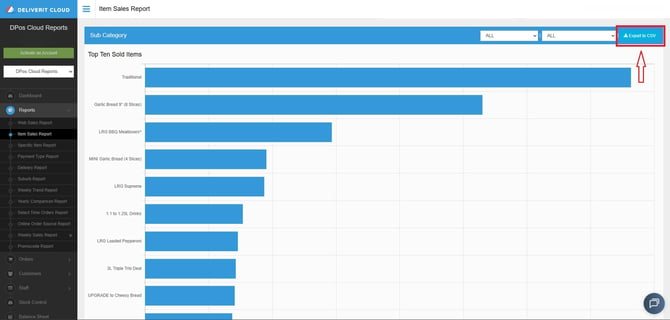
Click on Export to CSV to download the report for further review or sharing.
Regularly reviewing the Item Sales Report helps you identify top-performing items, track trends, and make better business decisions. If you need further assistance, simply click the blue chat icon at the bottom-right corner of the screen to connect directly with our Application Support Team.