
Step‑by‑Step Instructions
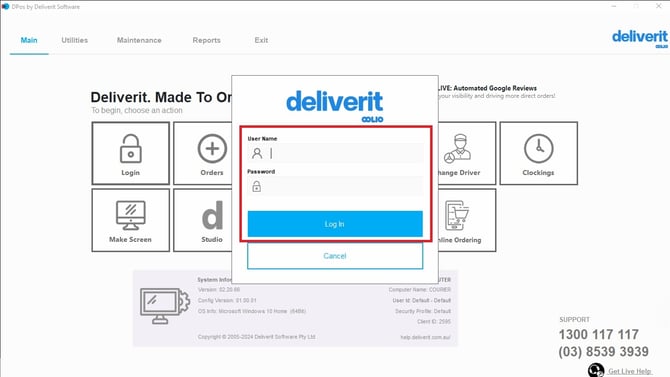
Log In to DPos
- Open DPos on your device.
- Enter your login credentials.
- Click Sign In to access the dashboard.
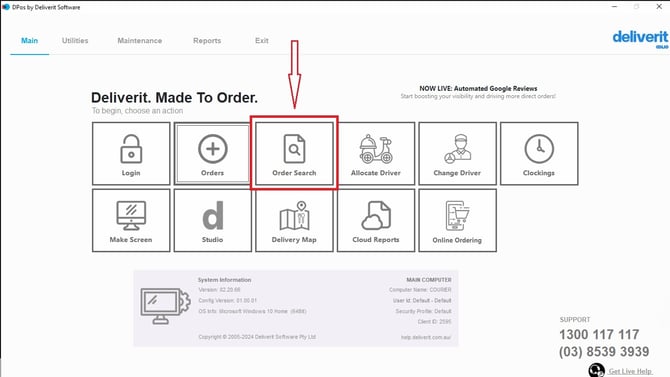
Go to the Order Search
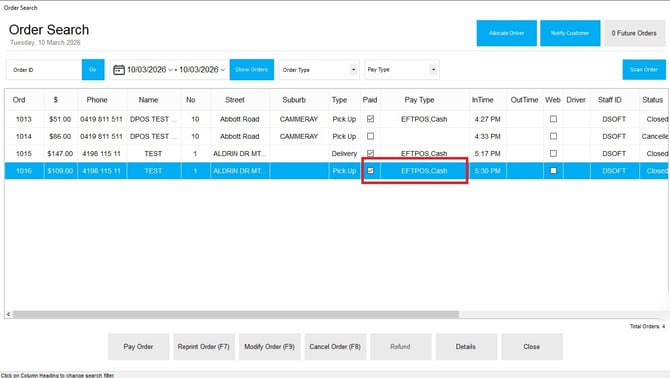
- Click on the Order Search.
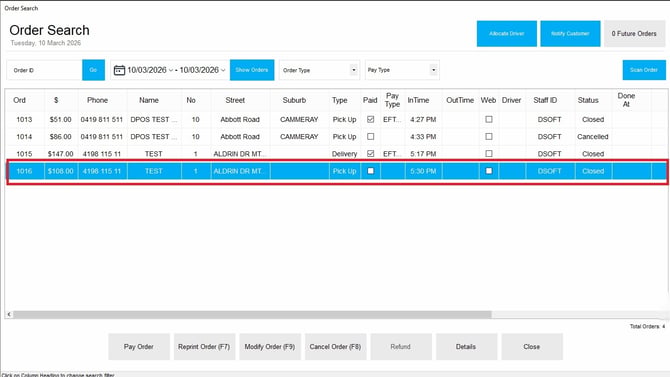
- Select the correct order from the list.
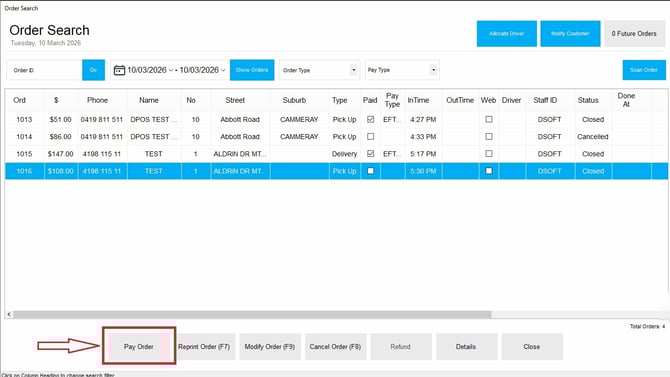
Open the Payment Screen
- Select Pay Order to open the payment options.
Enter the Card Payment Amount
- Choose Card as the first payment method.

- Enter the amount the customer wants to pay with their card.
- Click Save to apply the payment.

A prompt will appear indicating that the amount tendered is less than the total order amount. Click yes.

Enter the Cash Payment Amount
- Open the same order again.
- Select Cash as the second payment method.

- Enter the remaining balance amount.
- Click Save to complete the transaction.

Once both payments are entered, the order will be marked as fully paid.
Split payments ensure flexibility for customers who prefer to combine different payment types. If you need further assistance, simply click the blue chat icon at the bottom-right corner of the screen to connect directly with our Application Support Team.