
Step-by-Step Guide
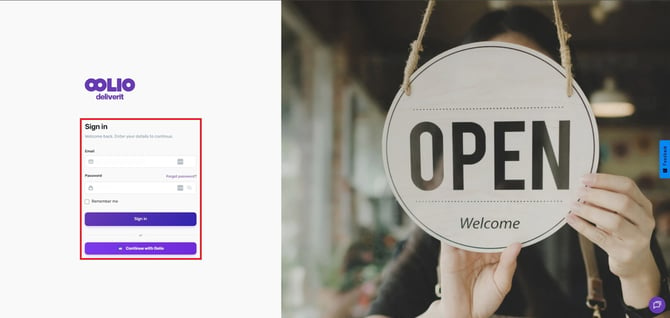
Log in to Deliverit Studio
Use your credentials to access the Deliverit Studio platform.
Navigate to Marketing
Once logged in:
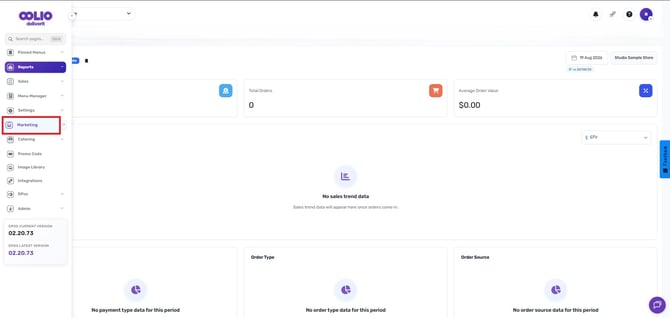
- Click on the Marketing from the main dashboard.
Open the Settings Section
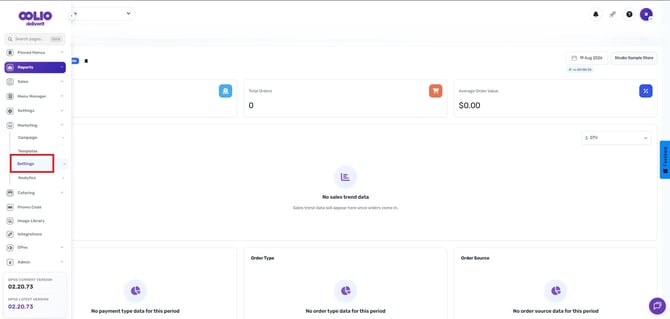
- Inside Settings, go to Settings.
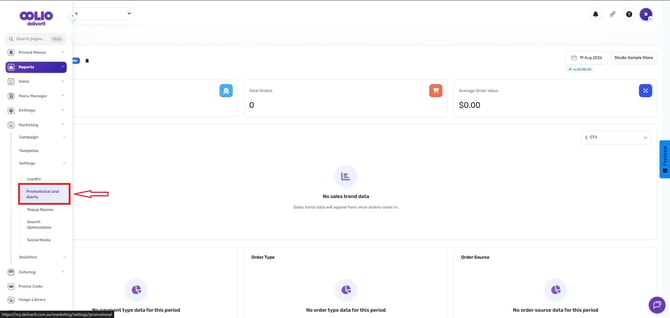
- Click on the Promotional and Alerts tab to access the promotional program configuration panel.
Configure Your Promotional Programs
The Promotions tab is divided into several sections:
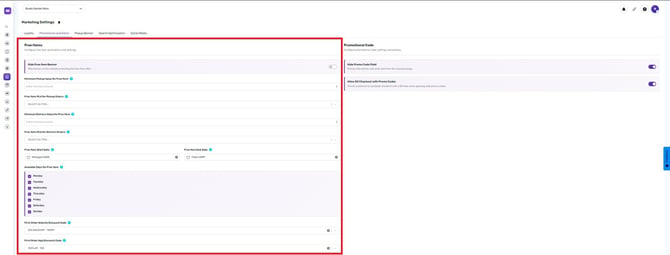
Free Items Section
- Hide / Show Free Item Banner
Toggle to hide or display the promotional banner for free items on your website.
- Minimum Pickup Value for Free Item
Set the minimum order value required for pickup orders to qualify for a free item.
- Free Item PLU for Pickup Orders
Select the Item code for the free item offered with pickup orders.
- Minimum Delivery Value for Free Item
Set the minimum order value required for delivery orders to qualify for a free item.
- Free Item PLU for Delivery Orders
Select the Item code for the free item offered with delivery orders.
- Free Item Start Date and End Date
Choose the start and end dates for your free item promotion using the calendar - Available Days for Free Items
Select which days of the week (Monday to Sunday) the free item promotion will be active.
- First Order Website Discount Code
Select a discount code to apply automatically to a customer’s first website order. - First Order App Discount Code
Select a discount code to apply automatically to a customer’s first app order.
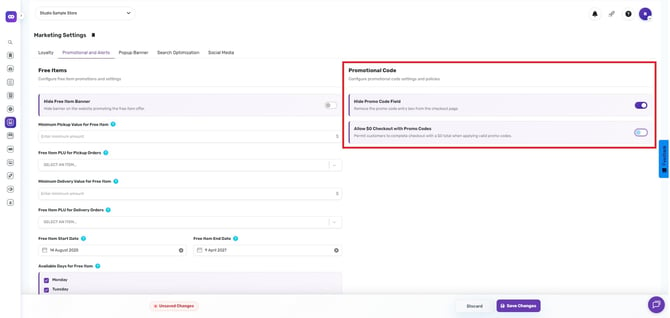
Promotional Code Section
- Hide Promo Code Field
Enable this setting to remove the promo code field from the ordering and checkout pages, temporarily disabling promo code redemptions. - Allow $0 Checkout with Promo Codes
Toggle ON to allow customers to complete checkout with a $0 total when using valid promo codes.
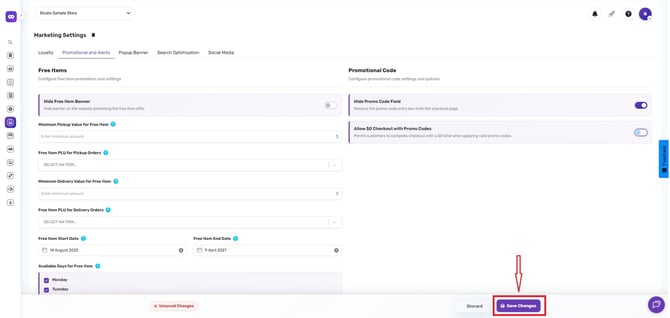
Save Your Settings
Once all fields are configured, click Save to activate your promotional program.
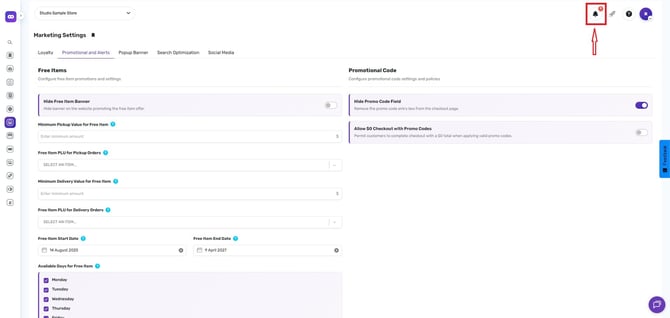
Check Deployment Status
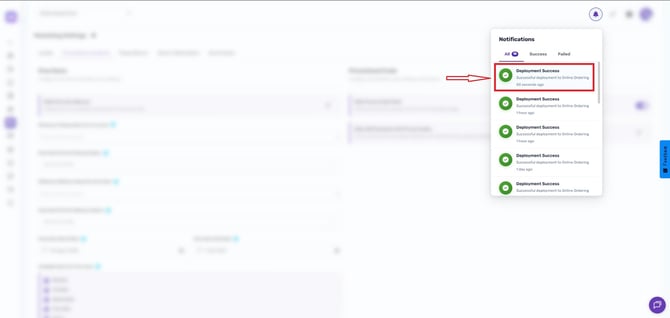
Tap the notification bell. If the deployment succeeded, you’ll see a confirmation message.
By following these steps, you will be able to configure the Promotional Program on Deliverit Studio with ease. If you need further assistance, simply click the blue chat icon at the bottom-right corner of the screen to connect directly with our Application Support Team.