
Accessing Promotion Templates in Studio
Follow these steps to locate the promotion templates:
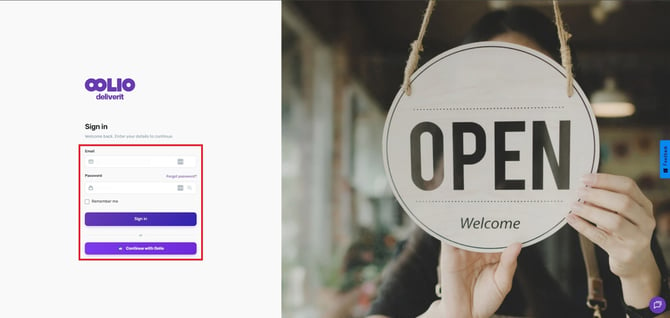
Log in to Studio
Use your assigned Admin credentials.
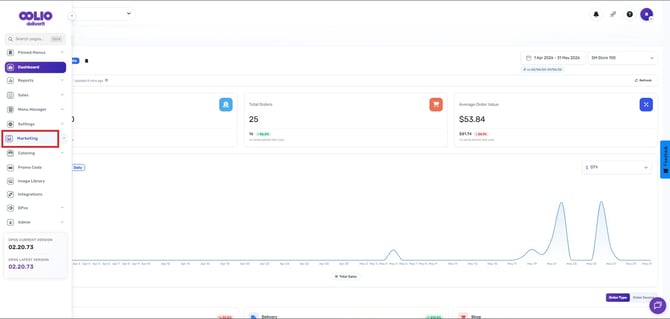
Select “Marketing”
This expands the marketing tools and configuration options.
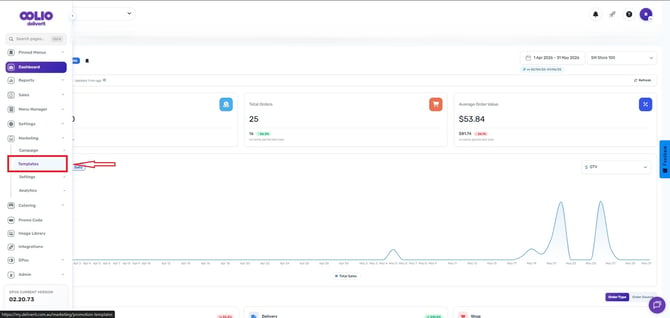
Click on “Templates”
You will now see all available promotion templates that your Admin role can access.
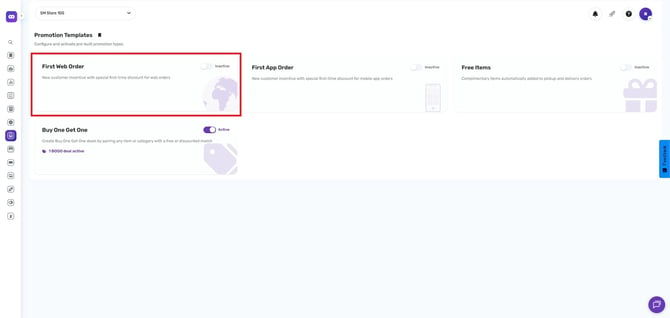
First Web Order Discount
Once you switch the feature ON, a configuration window will appear titled Configure First Web Order. This pop‑up allows you to choose which promo code will be automatically applied to the customer’s first web transaction.
Inside the configuration box, you will see:
First Web Order Discount Code
This dropdown contains all available promo codes that your store has created.
You simply need to:
- Click on the dropdown menu.
- Choose the promo code you want to be automatically applied to first-time app orders.
- Click Save to finalize your selection.
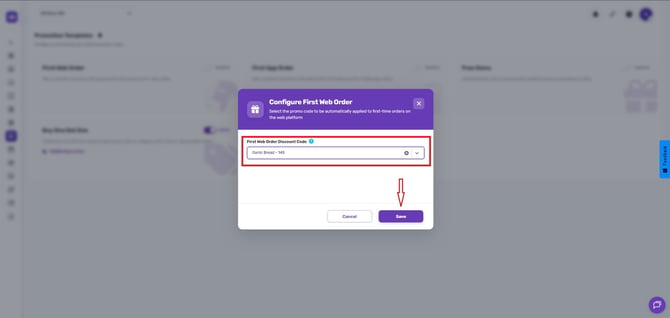
When the discount code is saved, it becomes active immediately. From that point forward, any customer placing their first-ever order on your web platform will automatically receive the discount.
First App Order Discount
When you switch the feature ON, a configuration pop‑up appears titled Configure First App Order.
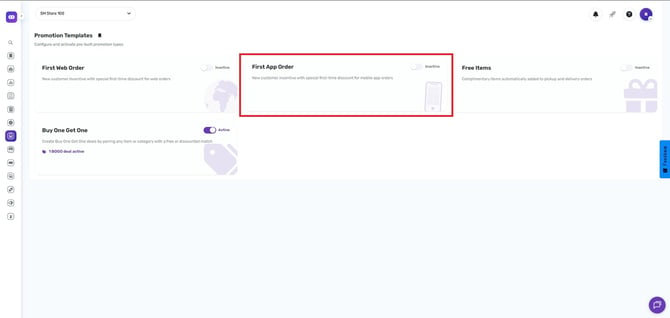
Inside this setup screen, you will find:
A dropdown menu labeled “SELECT AN ITEM…” which contains all your available promo codes.
You simply need to:
- Click on the dropdown menu.
- Choose the promo code you want to be automatically applied to first-time app orders.
- Click Save to finalize your selection.
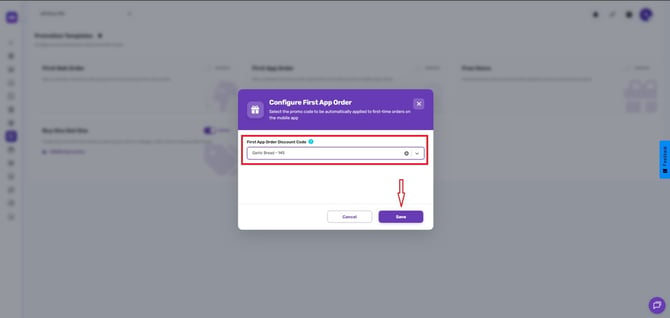
After saving, the discount becomes active immediately and will apply to all eligible first-time app users.
Free Items Promotion Template
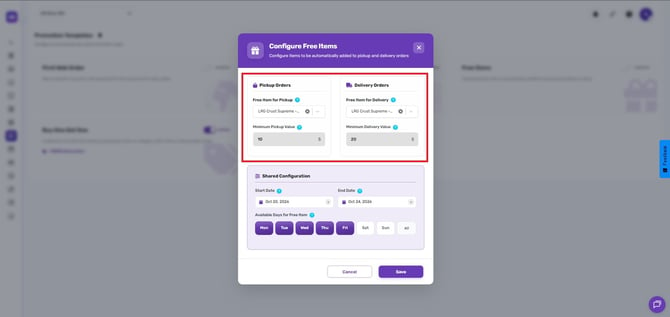
This template automatically adds complimentary items to eligible orders (Pickup or Delivery).
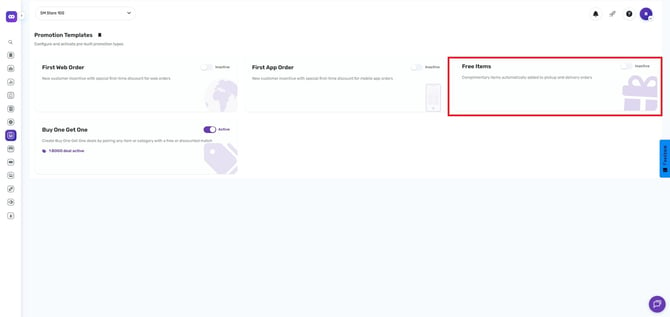
Pickup vs Delivery Configuration Options
The Free Items template allows independent configuration for each fulfillment type:
You can configure:
- Different free items for Pickup vs Delivery
- Unique minimum order values
Shared Settings Across Templates
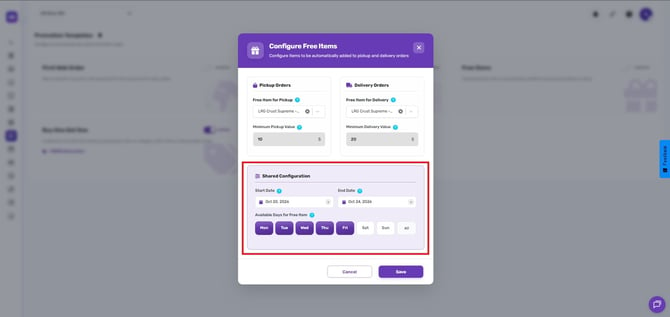
Most promotion templates include shared scheduling and rule options.
Common Configuration Settings
- Start & End Dates
- Day-of-week availability (Mon–Sun or All Days)
Buy One Get One
Create Buy One Get One deals by pairing any item or category with a free or discounted match.
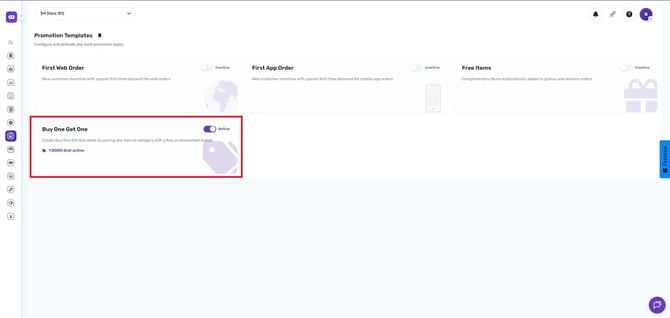
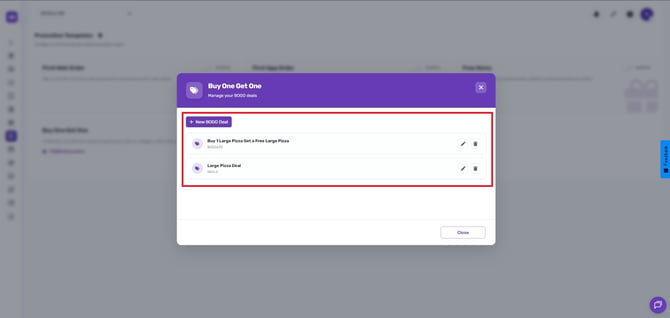
Note: For Buy One Get One setup instructions, follow this link.
These controls allow you to run short-term, seasonal, recurring, or targeted campaigns with ease.
By following the steps in this guide, you can easily locate, configure, and deploy effective promotions across different channels and order types. If you need further assistance, simply click the blue chat icon at the bottom-right corner of the screen to connect directly with our Application Support Team.