
Log In to Studio
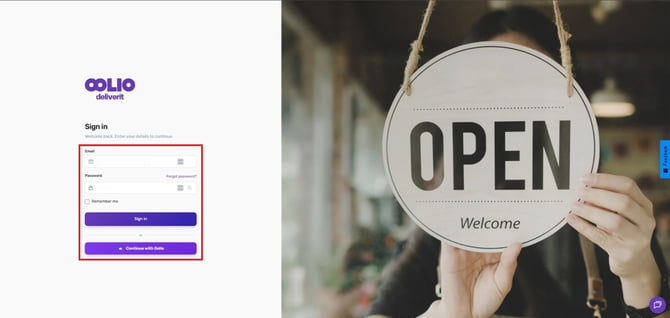
- Go to my.deliverit.com.au.
- Sign in using your Studio account credentials.
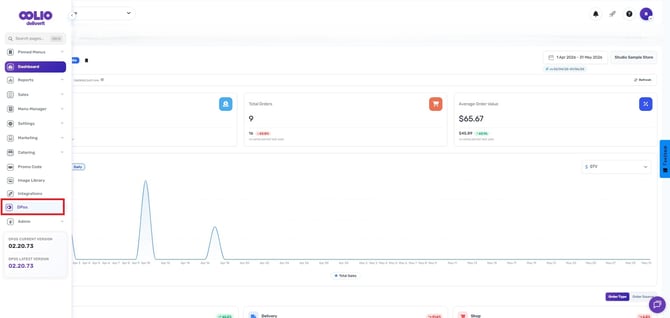
Navigate to DPOS Subcategories
- Select DPOS.
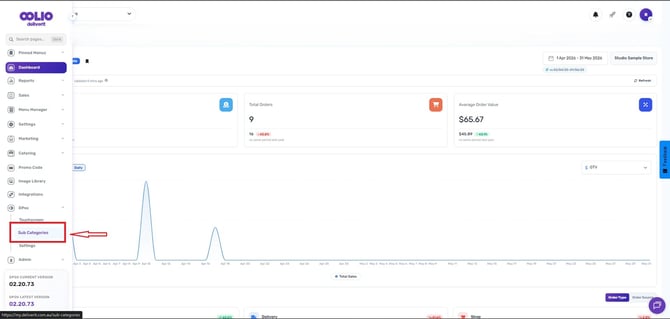
- Click Subcategories.
Search and Filter Subcategories
You can use the available filters to quickly locate subcategories.- Search for a specific subcategory by name.
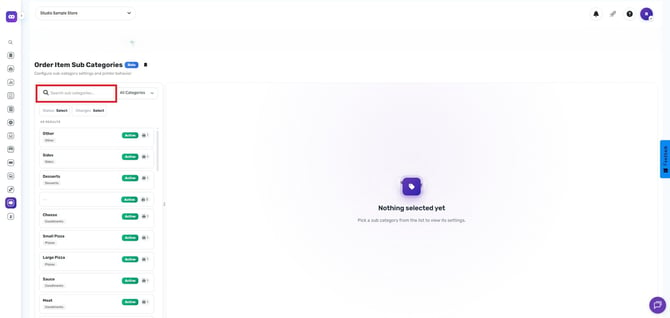
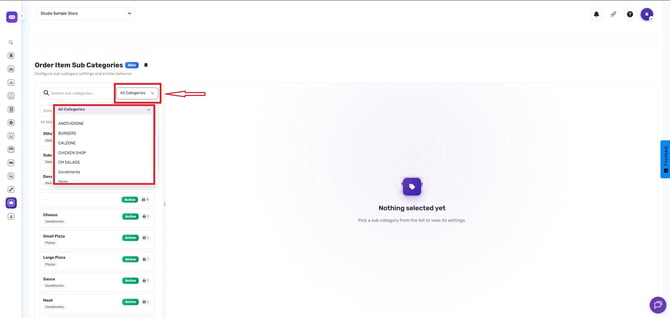
Filter by Category
View subcategories from all categories.- Filter by a specific category.
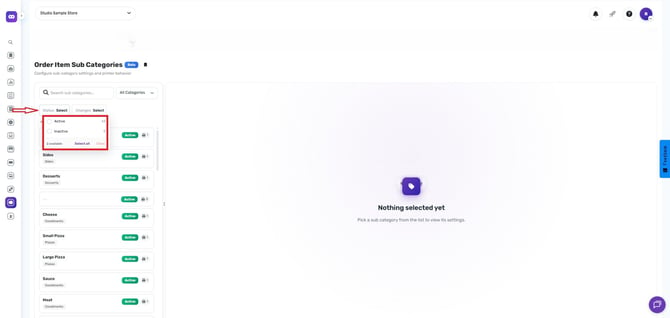
Filter by Status
Select one of the following status options:
- Active
- Inactive
- Select All
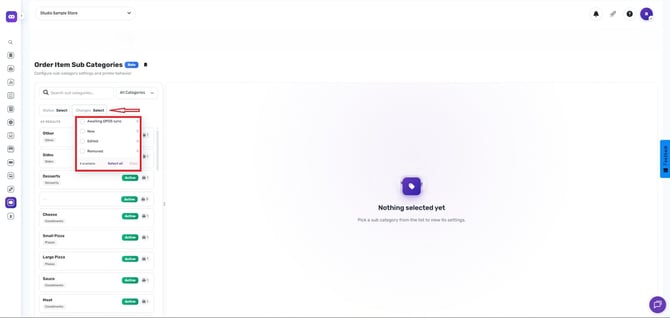
Filter by Changes
Select one of the following change filters:
- Awaiting DPOS Sync
- New
- Edited
- Removed
- Select All
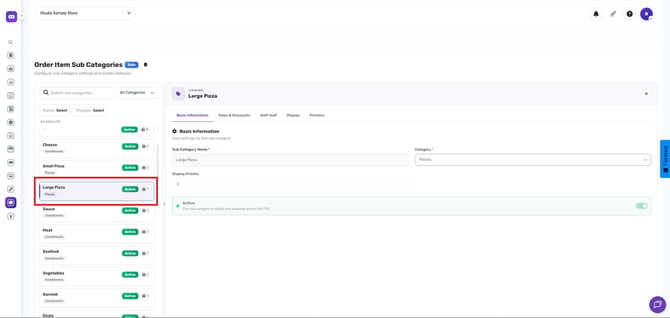
View and Edit a Subcategory
- Click on a subcategory to open its settings and configuration options.
Configuration Settings
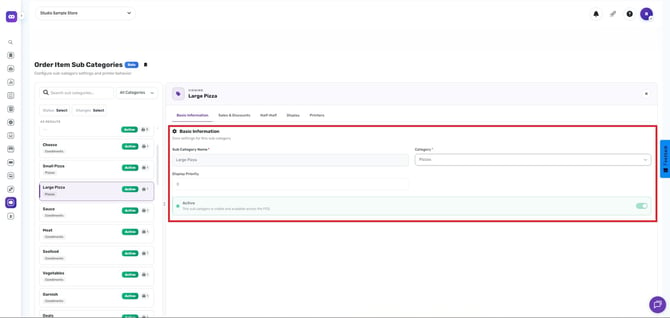
Basic Information
Configure the core details of the subcategory:
- Subcategory Name
- Category
- Display Priority
- Active/Inactive Toggle
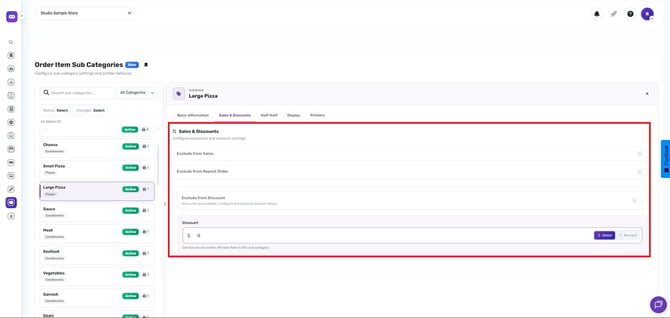
Sales and Discounts
Control how the subcategory interacts with sales and discount functions:
- Exclude from Sales
- Exclude from Repeat Orders
- Exclude from Discounts
- Set a Value by Amount per Dollar or Percentage
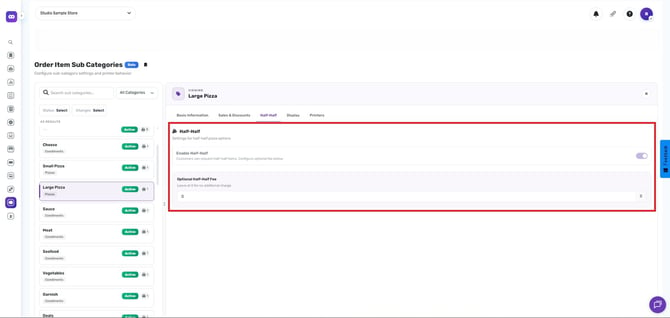
Half & Half Settings
Configure Half & Half options:
- Enable Half & Half
- Optional Half & Half Fee
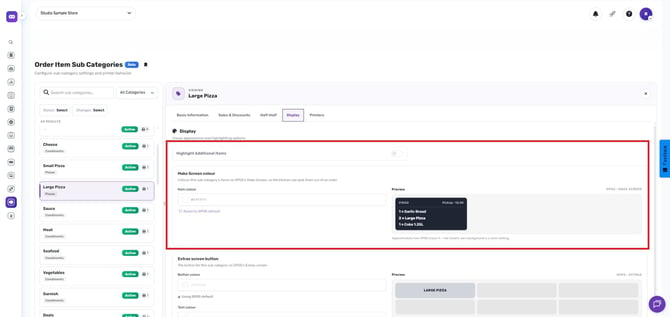
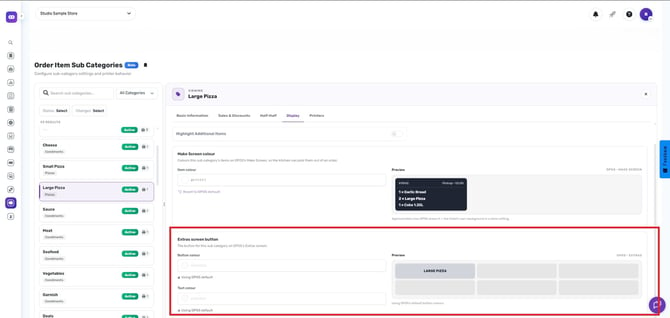
Display Settings
Customize how the subcategory appears in DPOS:
- Highlight Additional Items
- Make Screen Colour
Item Colour - Choose a colour for items within the subcategory.c
Preview - Preview how the settings will appear on the makscreen
Extras Screen Button
Button Appearance
Configure:
- Button Colour
- Text Colour
- Preview
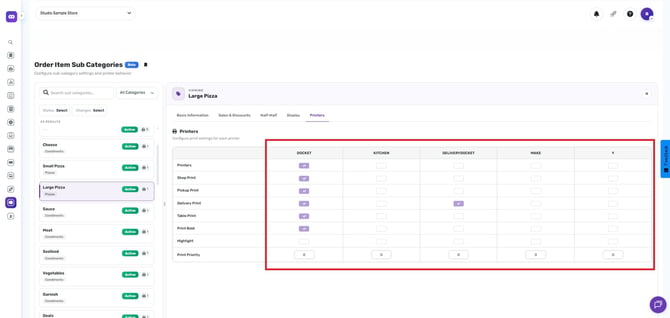
Printer Settings
Select which printers will receive the subcategory information:
- Docket
- Kitchen
- Delivery Docket
- Make Screen
- Y Printer
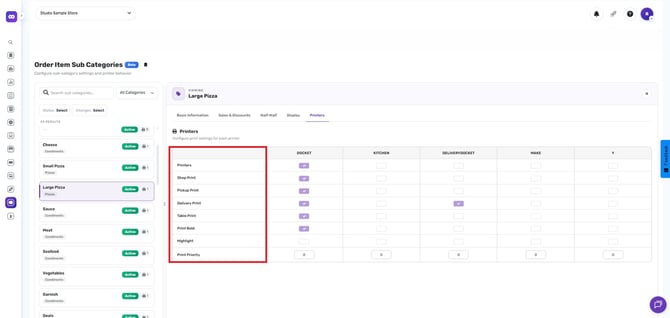
Print Selections
Configure printing behavior for different order types:
When switching from Regular Printing to Transactional Printing, each subcategory must be updated individually to use Transactional Printing.
If the store uses multiple printers, review the printer assignments for each subcategory and enable or remove printer outputs as required.
- Shop Print
- Pickup Print
- Delivery Print
- Table Print
- Print Bold
- Highlight
- Print Priority
Tip: Use display priorities and colour settings to make commonly used subcategories easier for staff to identify and access DPOS.
If you need further assistance, simply click the chat icon at the bottom-right corner of the screen to connect directly with our Application Support Team.