
Step‑by‑Step Guide
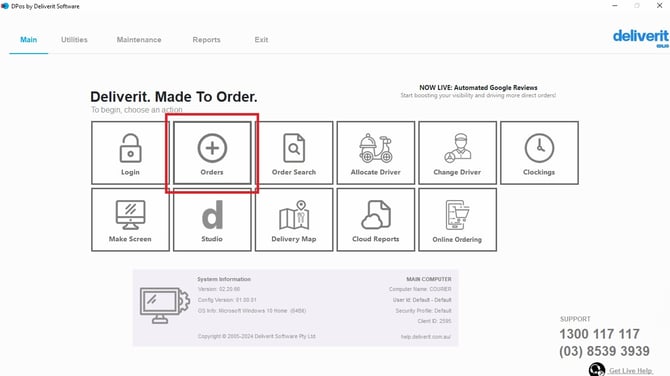
Go to Order Taking Screen
From the main DPos screen, navigate to Orders.
This section allows you to view and manage order‑related settings.
Open the Intervals Settings
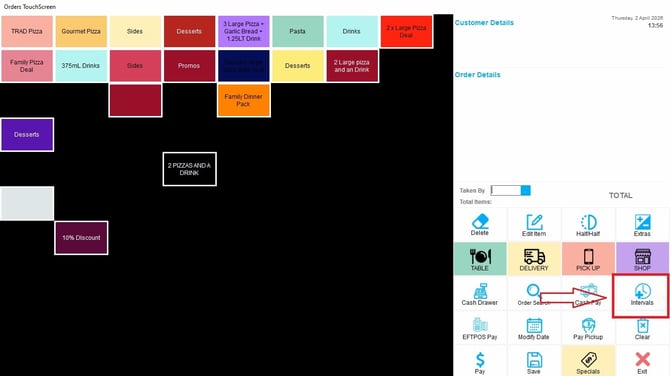
Within Ordering Screen, locate and select the Intervals option (Clock Icon)
This is where pickup and delivery timing settings are configured.
Set Your Desired Wait Times
Adjust the wait times for:
- In‑store pickup
- Delivery orders
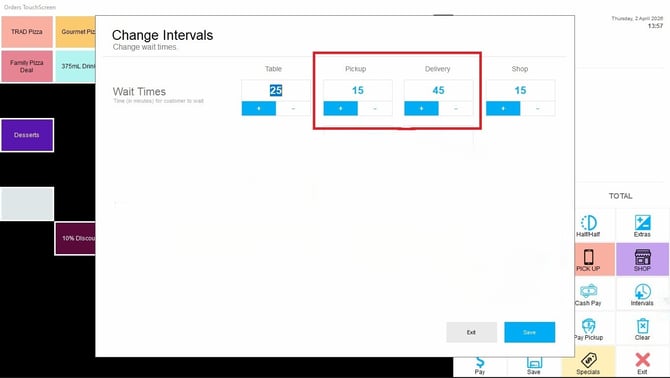
Set the intervals based on your store’s current capacity and operational needs.
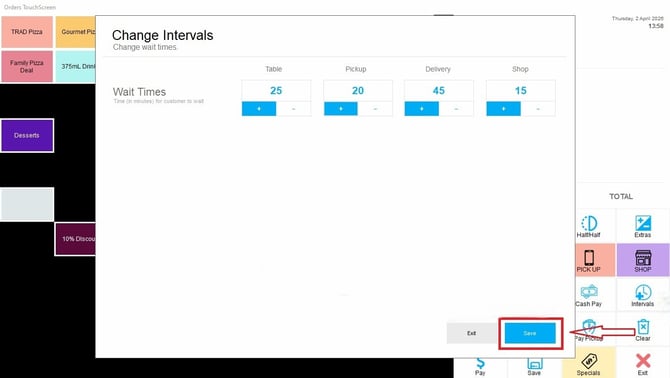
Save Your Changes
Once you have adjusted the wait times, click Save to apply the changes.
-
Don’t forget to switch back to your default settings after the busy period.
Your new intervals will now reflect on DPos.
By following these steps, you can easily update your in‑store pickup and delivery intervals in DPos. If you need further assistance, simply click the blue chat icon at the bottom-right corner of the screen to connect directly with our Application Support Team.