
✅ Log in to Deliverit Studio from my.deliverit.com.au
✅ Go to Menu Manager → Items tab
✅ Open the Modifiers tab for your item
✅ Click Settings on the modifier
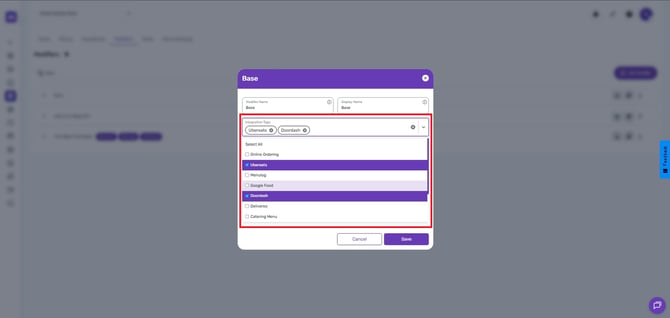
✅ Select the correct platform(s) under Integration Tags
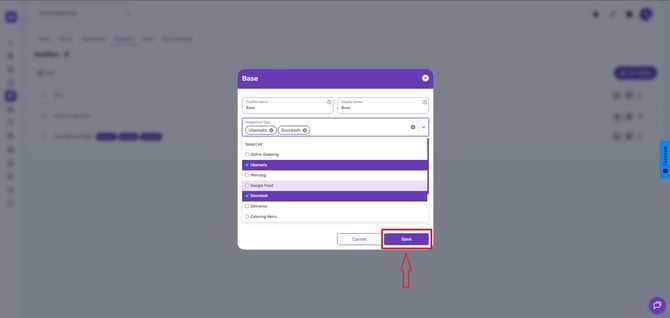
✅ Click Save
✅ Deploy changes using the Rocket icon
- This feature means the system will display a visual indicator (such as a tag or label) on the menu or item, but it does not affect the item’s functionality, pricing, or availability.
- It serves only as a marker for easier identification and organization within Deliverit Studio.
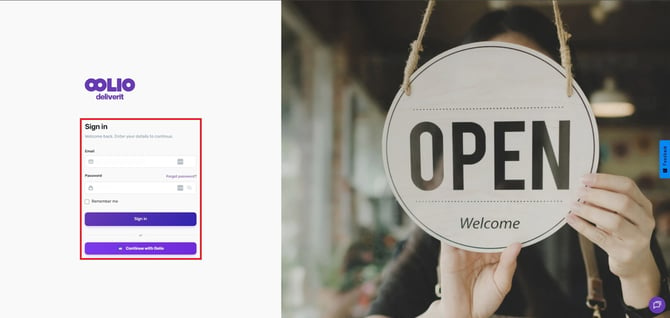
Log In
- Open your browser and go to my.deliverit.com.au.
- Enter your username and password.
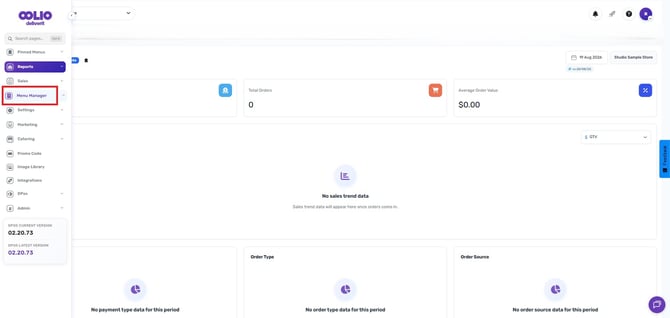
Navigate to the Menu Manager
- From the left-hand menu, click Menu Manager.
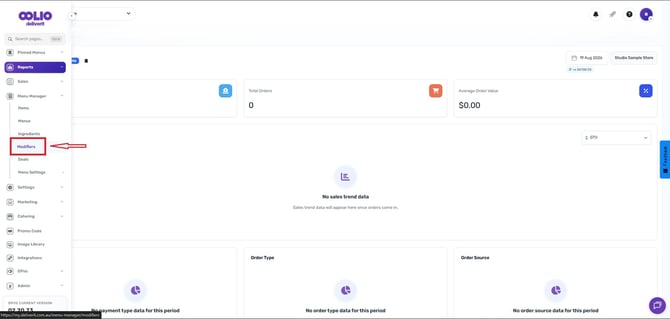
Open the Modifiers.
- Go to the Modifiers.
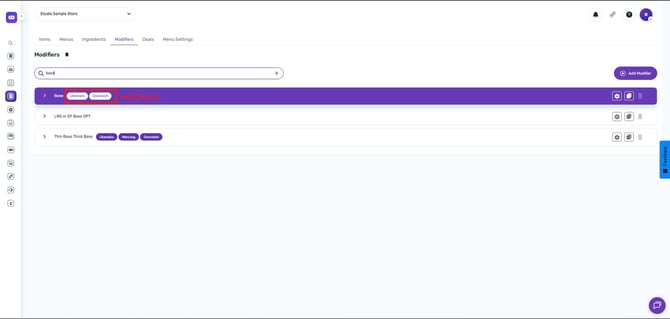
- Search and click the modifier you want to update.
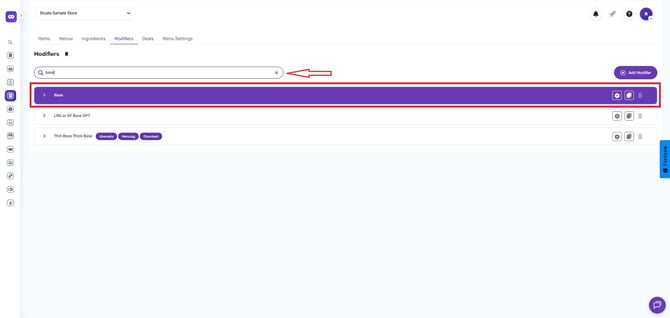
- Click the Settings button.
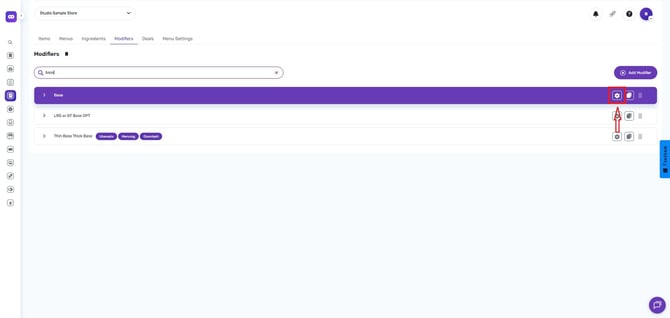
Assign Platform Tags
- Scroll to the Integration Tag section.
- Select the platform(s) where this modifier should be available (e.g., Online, UberEats, DoorDash).
- Click Save to apply changes.
Deploy the Changes
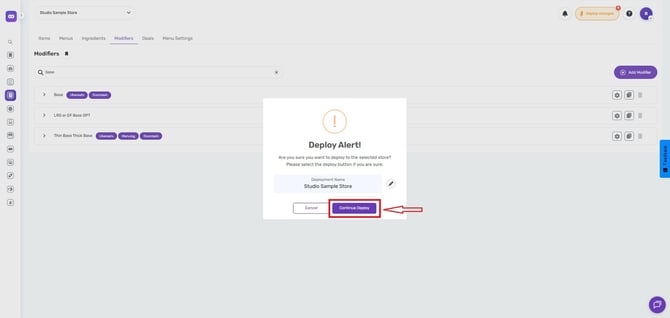
- Go to the Rocket icon in the top-right corner.
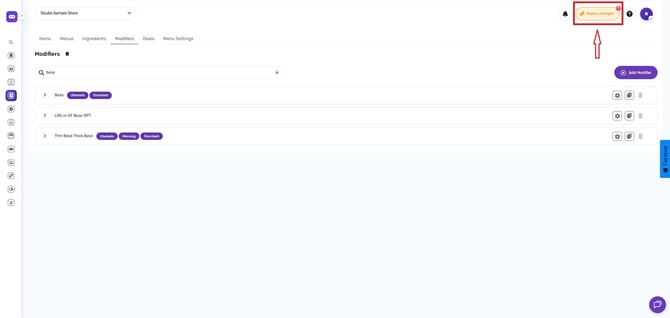
- Click Deploy to publish your updated menu.
By following these steps, you can easily assign platform tags to your modifier selections in Deliverit Studio, ensuring your menu works correctly across all platforms. If you need further assistance, simply click the blue chat icon at the bottom-right corner of the screen to connect directly with our Application Support Team.