
Step‑by‑Step: Applying a Surcharge
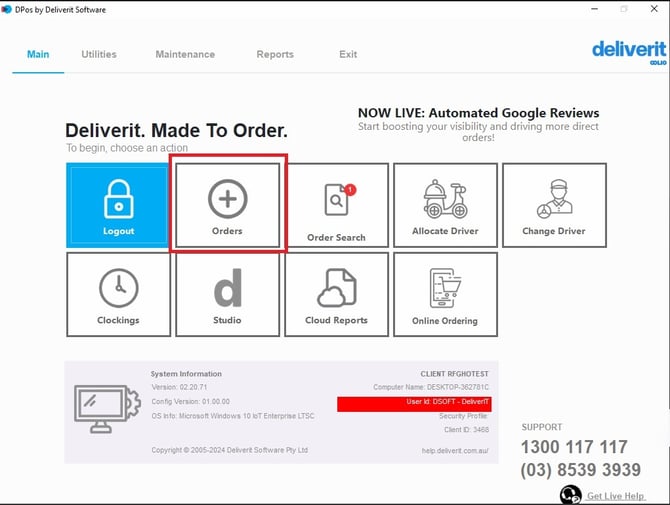
Go to the Order Section
- Open the Order section in the DPOS system.
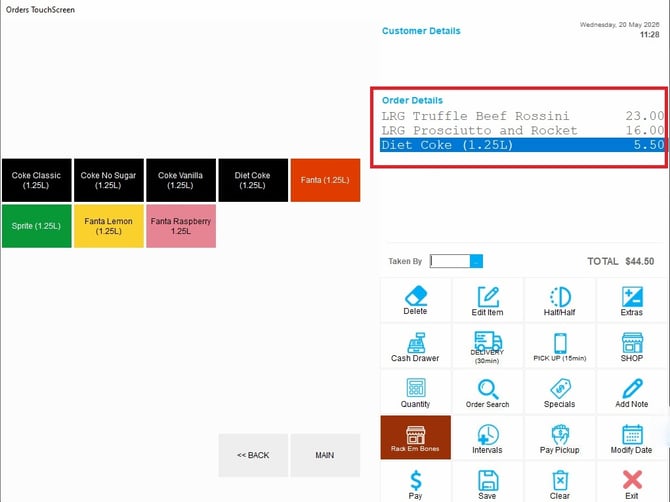
Add Items to the Order
- Select and add the required items to the order.
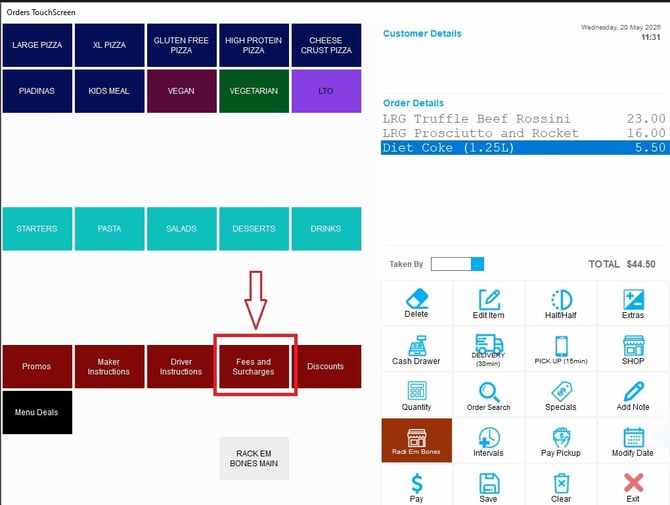
Open Fees and Surcharges
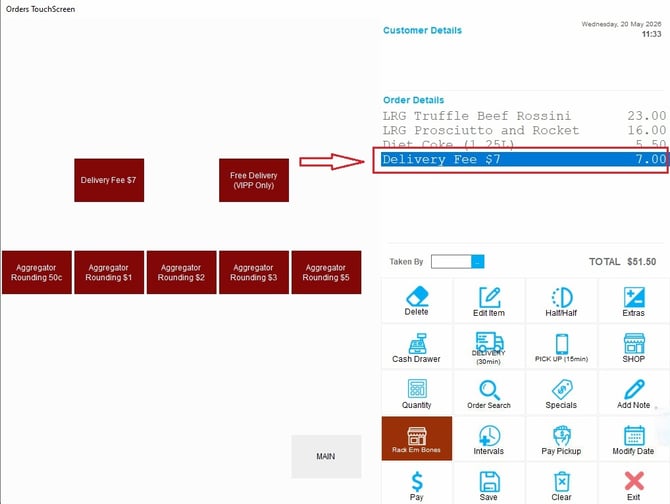
- Once all items have been added, Go back to the main menu and click the Fees and Surcharges button.
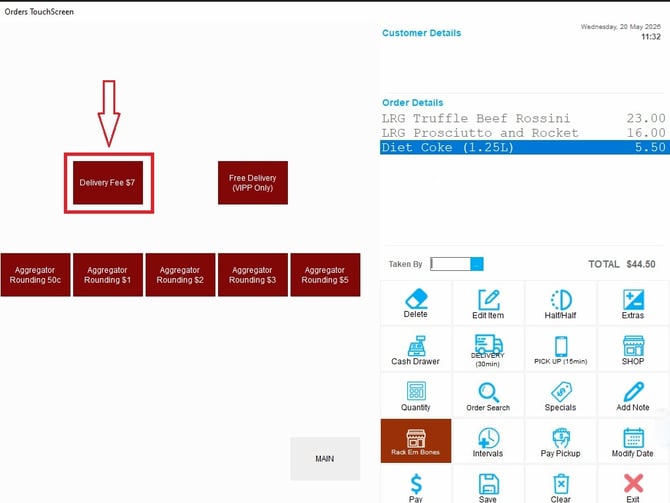
Select a Surcharge
- Choose the surcharge type you want to apply from the available options.
Confirm the Surcharge
- The selected surcharge will be automatically applied to the order total.
If you need further assistance, simply click the blue chat icon at the bottom-right corner of the screen to connect directly with our Application Support Team.